| Version 3 (modified by , 5 years ago) ( diff ) |
|---|
Site Navigation
- COSMOS Testbed Overview
- Getting Started
- COSMOS/ORBIT User Guide
- COSMOS Portal
- Account Management
- Portal Dashboard
- Directory
- Disk Images
- Community Forum
- Getting Started with the COSMOS Portal
- SSH Access to Testbed Nodes
- Scheduler
- Testbed Status
- Installing Chrome Remote Desktop (CRD) on a Custom Image
- Tutorials
- Architecture
- Resources, Services and APIs
- Datasets
- Hardware Info
- RF Policies & Compliance
Chrome Remote Desktop Setup Page
Chrome Remote Desktop is a Google developed client-server framework that allows for remote desktop access to (in this case) a headless machine. In order to access a node that has Chrome Remote Desktop server side installed, you need to:
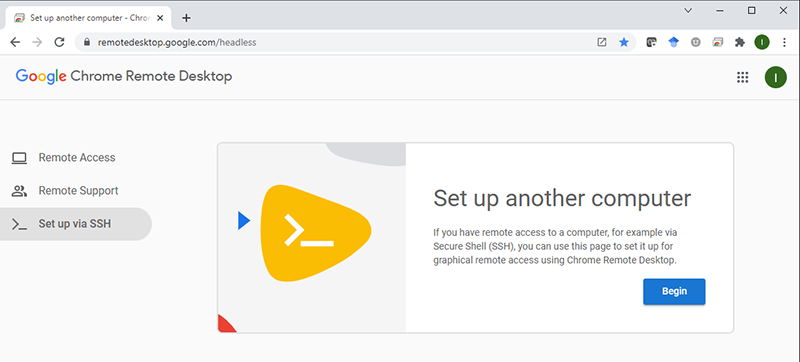
Step 1
Access the remote access page on your local Chrome browser and hit the Begin button:

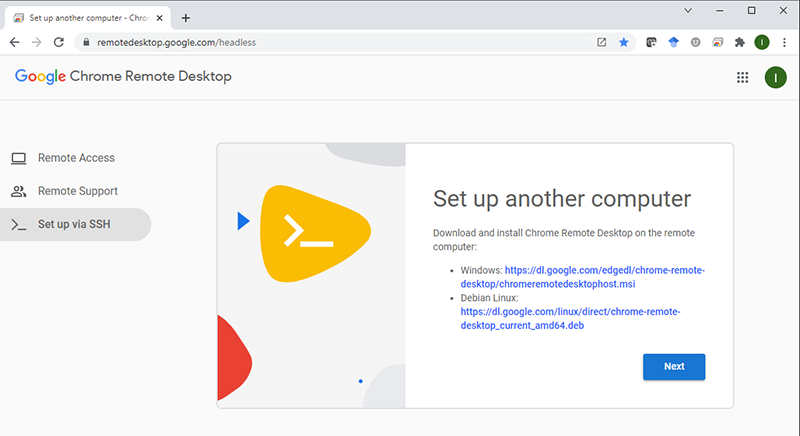
Step 2
Select the Next button (under the assumption that you already have remote desktop service installed on the target node):

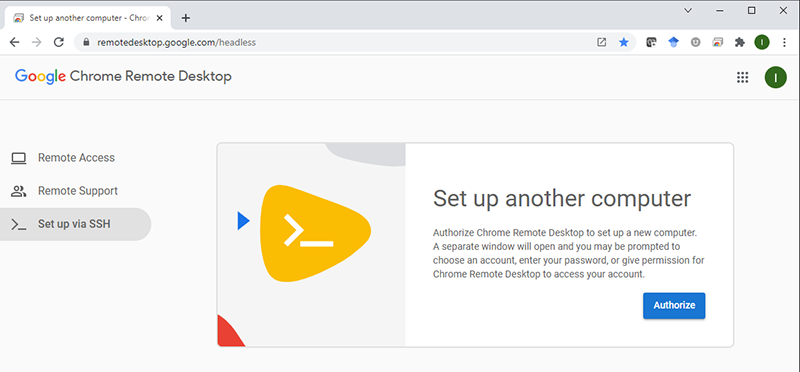
Step 3
Generate authorization token for the node but hitting the Authorize button

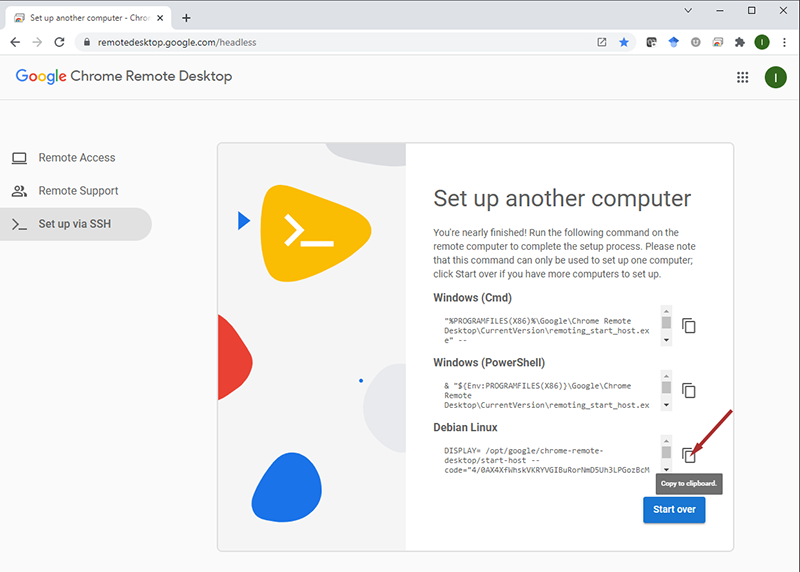
Step 4
Copy the command line with the token to you clipboard by selecting the target OS Copy button (icon to the right of the command line content pane - example below points at the copy button for the Linux platform)

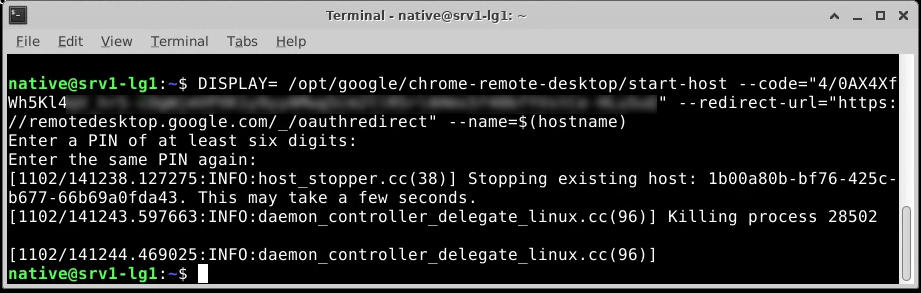
Paste that command line in the remote ssh session on the node command line (typically not as a root user but rather as a user that was created for the remote access).

As shown in the above figure, the service will prompt you (twice) for a PIN number that will be needed in the next step as an additional security feature.
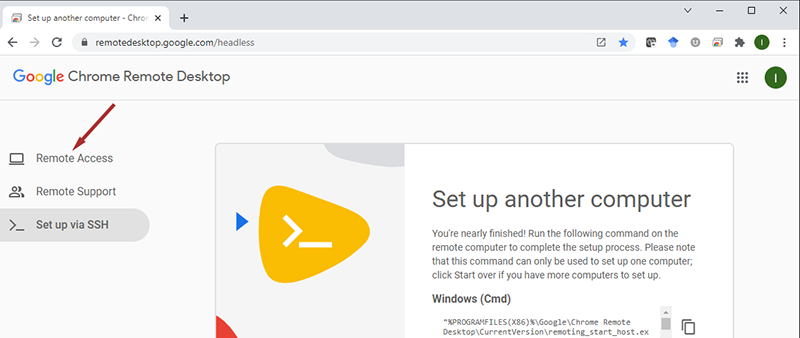
Step 5
Switch to the Remote Access mode in your local browser:

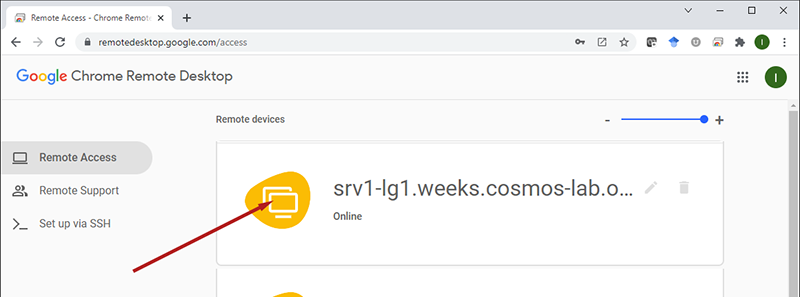
Step 6
If the authorization was successfully applied you should see the node listed under the Remote devices section:

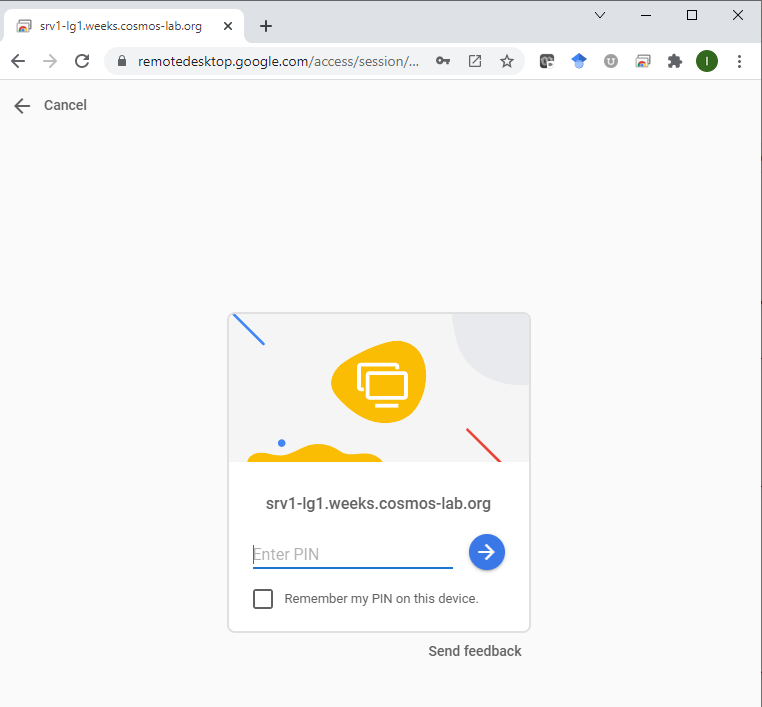
Select that node and you should be prompted for the PIN created in Step 5:

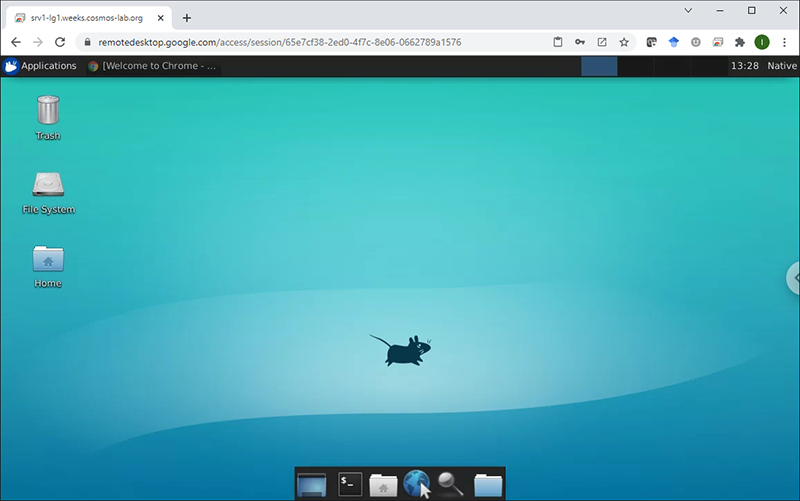
Step 7
Once the pin is successfully entered, you should be rewarded with the remote desktop access within your browser:

Important note: Chrome Remote Desktop authorization can't be saved with the image and will not "survive" reboots i.e. you will have to re-authorize access every time node is booted!
Attachments (9)
- Step1.png (54.9 KB ) - added by 5 years ago.
- Step2.png (63.2 KB ) - added by 5 years ago.
- Step3.png (59.9 KB ) - added by 5 years ago.
- Step4.png (95.4 KB ) - added by 5 years ago.
- Step5.png (67.5 KB ) - added by 5 years ago.
- Step6.png (43.6 KB ) - added by 5 years ago.
- Step6a.png (32.0 KB ) - added by 5 years ago.
- Step7.png (99.5 KB ) - added by 5 years ago.
- Paste.png (131.5 KB ) - added by 5 years ago.
Download all attachments as: .zip