Site Navigation
- COSMOS Testbed Overview
- Getting Started
- COSMOS/ORBIT User Guide
- COSMOS Portal
- Account Management
- Portal Dashboard
- Directory
- Disk Images
- Community Forum
- Getting Started with the COSMOS Portal
- SSH Access to Testbed Nodes
- Scheduler
- Testbed Status
- Installing Chrome Remote Desktop (CRD) on a Custom Image
- Tutorials
- Architecture
- Resources, Services and APIs
- Datasets
- Hardware Info
- RF Policies & Compliance
Resources, Services and APIs
Everything that Experimenters can interact with is referred to as a Resource
To run an experiment, you will configure the resources that you need.
This includes:
- Compute
- capable of having disk images loaded and saved
- users can log into them with ssh after provisioning
- Software Defined Radios
- FPGA images loaded with UHD
- Radio paramaters controlled with UHD or other API
- RF Frontends
- api to control switches, filters, and gain
- Network switches
- connectivity defined with API
- Optical Devices
- space switch, roadms, and other devices controlled with optical config service
Note, some resources will fall into more than one of the above categories, such as a compute machine with integrated SDR, like the USRP 2974
RF Control
A number of services is availabe for experimenters to manage various aspects of domains and resources. These include:
- RF Switch management service: service for management of RF switches in various sandbox nodes.
- Node RF control service: management of the RF front-end in large and medium outdoor nodes.
- XY Table service: controls the movable XY & angle platorms in Sandbox 1.
SDR Control
Compute Control
Network Control
Optical Control
Resources
REFERENCE: J. Yu, C. Gutterman, A. Minakhmetov, M. Sherman, T. Chen, S. Zhu, G. Zussman, I. Seskar, and D. Kilper, “Dual use SDN controller for management and experimentation in a field deployed testbed,” in Proc. OSA OFC’20, T3J.3, 2020.
CONTACT: Jiakai Yu
More details in the attached slides.
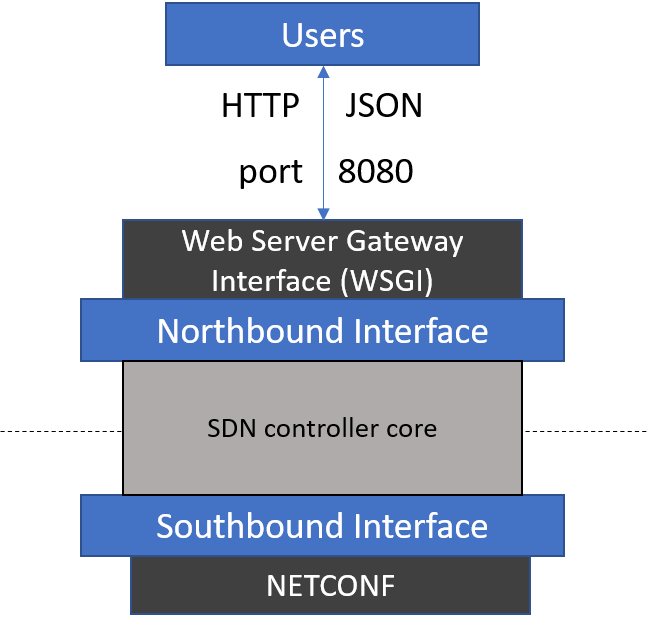
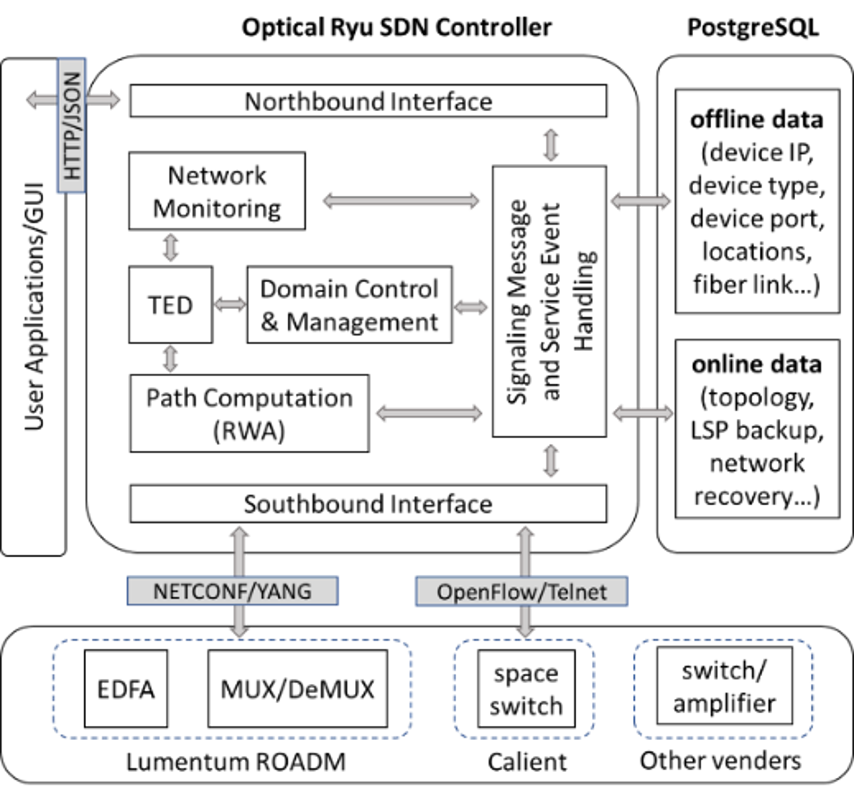
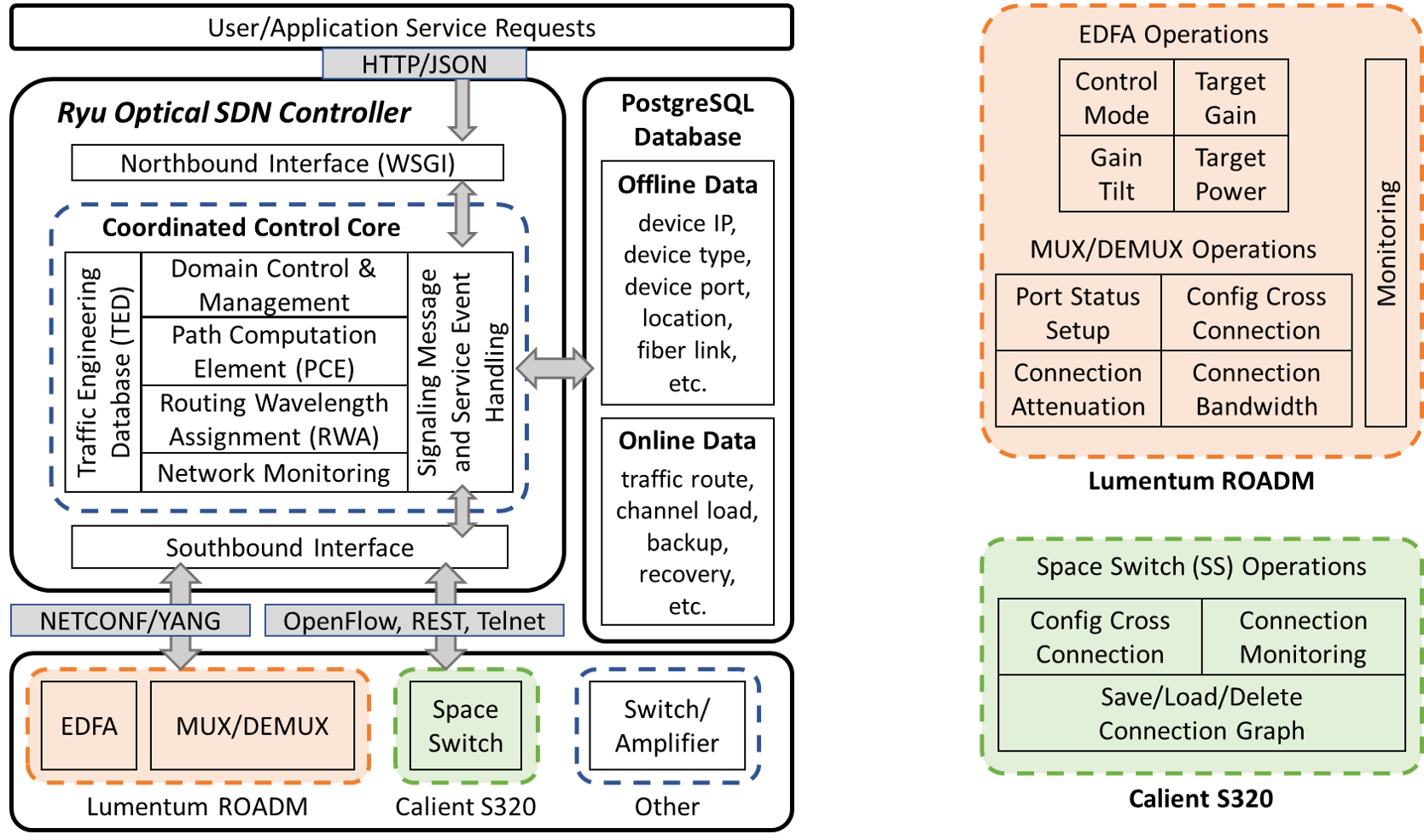
SDN controller architecture
SDN controller core functionalities:

|
Transmission setup
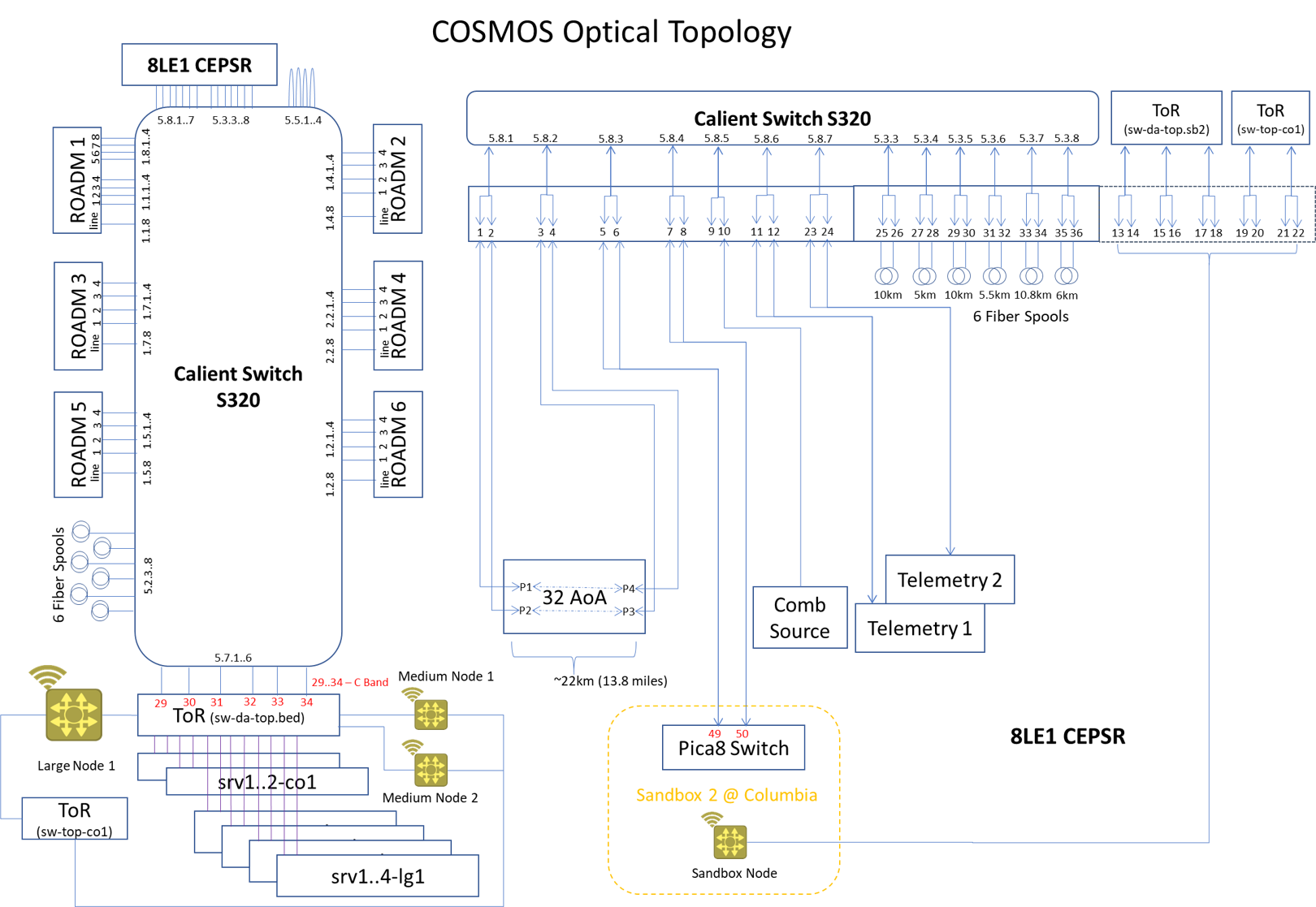
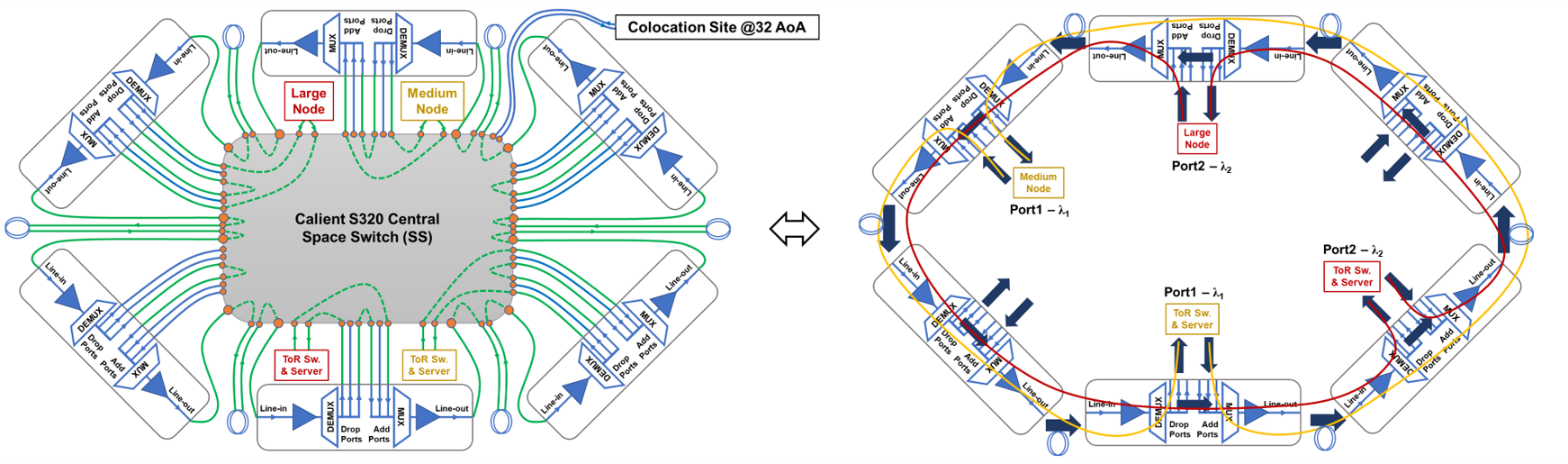
COSMOS optical topology overview:

|
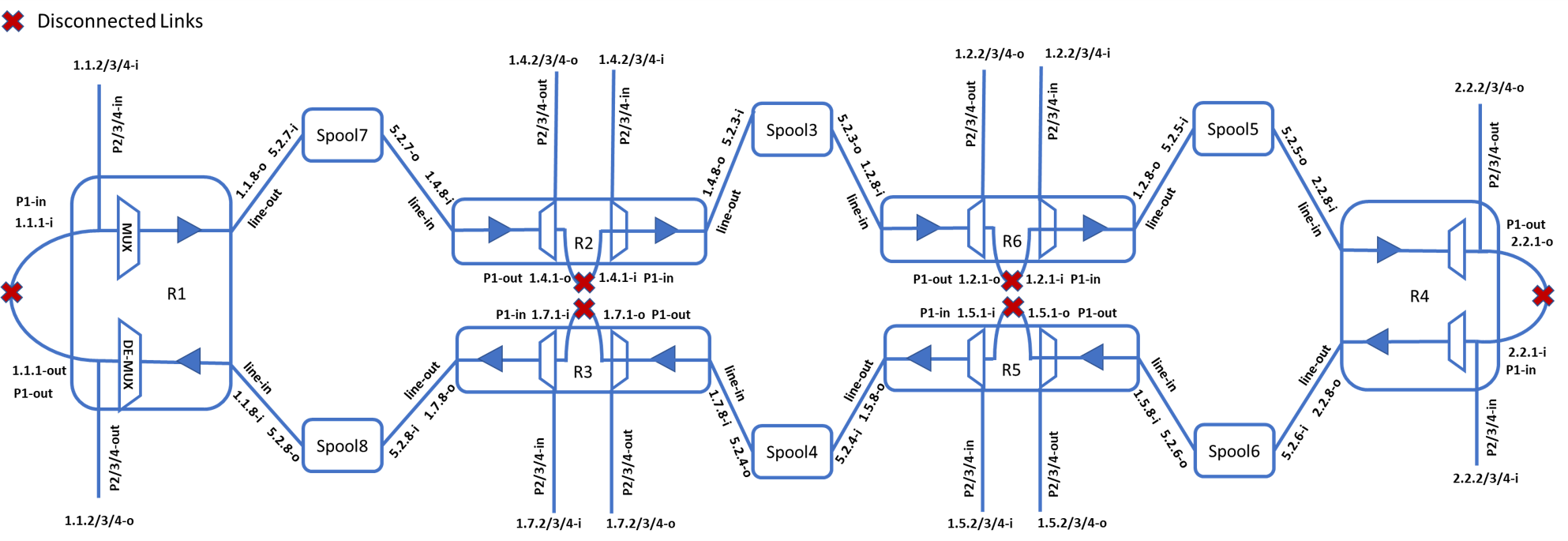
One of the default COSMOS Transmission setups is the ring network:

|

|
User JSON format request examples
Add a light-path through multiple ROADMs with RWA
{"Request_Class": "addPathConnection", “direction": "bi-direction", "source_node_ip": "1.1.1.1", "source_node_port": "1", "destination_node_ip": "1.1.1.2", "destination_node_port": "1", "connection_name": "cosmos", "connection_id": “1", "channel_id": "50"}
Monitor WSS connection information of a ROADM
{"Request_Class": "MonitorWSS", "node_ip": "1.1.1.1"}
Configure a single ROADM WSS connection
{"Request_Class": "ConfigWSS", "node_ip": "1.1.1.1", "name": "cosmos", "module_id": "2", "connection_id": "1", ’ "input_port": "5101", "output_port": "5203", "start_freq": "194600.00", "end_freq": "194650.00", "attenuation": "4.0", "status": "in-service", "block": "false"}
Set up cross-connections in Calient S320
{"Request_Class": "SetupCRS", "crs": ["5.7.6>5.8.5","5.7.7>5.8.6"]}
Page Map
Attachments (7)
- default topo.png (237.6 KB ) - added by 6 years ago.
- SDN_control_1.png (13.4 KB ) - added by 6 years ago.
- SDN_control_2.png (218.1 KB ) - added by 6 years ago.
- Ryu Optical SDN User Guide.pptx (300.9 KB ) - added by 6 years ago.
- COSMOS_optical_topology.png (248.7 KB ) - added by 6 years ago.
- RING_topo.png (446.1 KB ) - added by 6 years ago.
- SDN_CONTROL.png (420.3 KB ) - added by 6 years ago.
Download all attachments as: .zip