| Version 3 (modified by , 4 months ago) ( diff ) |
|---|
Site Navigation
- COSMOS Testbed Overview
- Getting Started
- COSMOS/ORBIT User Guide
- COSMOS Portal
- Account Management
- Portal Dashboard
- Directory
- Disk Images
- Community Forum
- Getting Started with the COSMOS Portal
- SSH Access to Testbed Nodes
- Scheduler
- Testbed Status
- Installing Chrome Remote Desktop (CRD) on a Custom Image
- Tutorials
- Architecture
- Resources, Services and APIs
- Datasets
- Hardware Info
- RF Policies & Compliance
COSMOS Portal User Guide
The COSMOS Portal is a web application for managing your testbed account, making reservations, and monitoring testbed resources. This guide covers the features available to regular users.
The portal is accessible at https://www.cosmos-lab.org/portal
Getting Started
Creating an Account
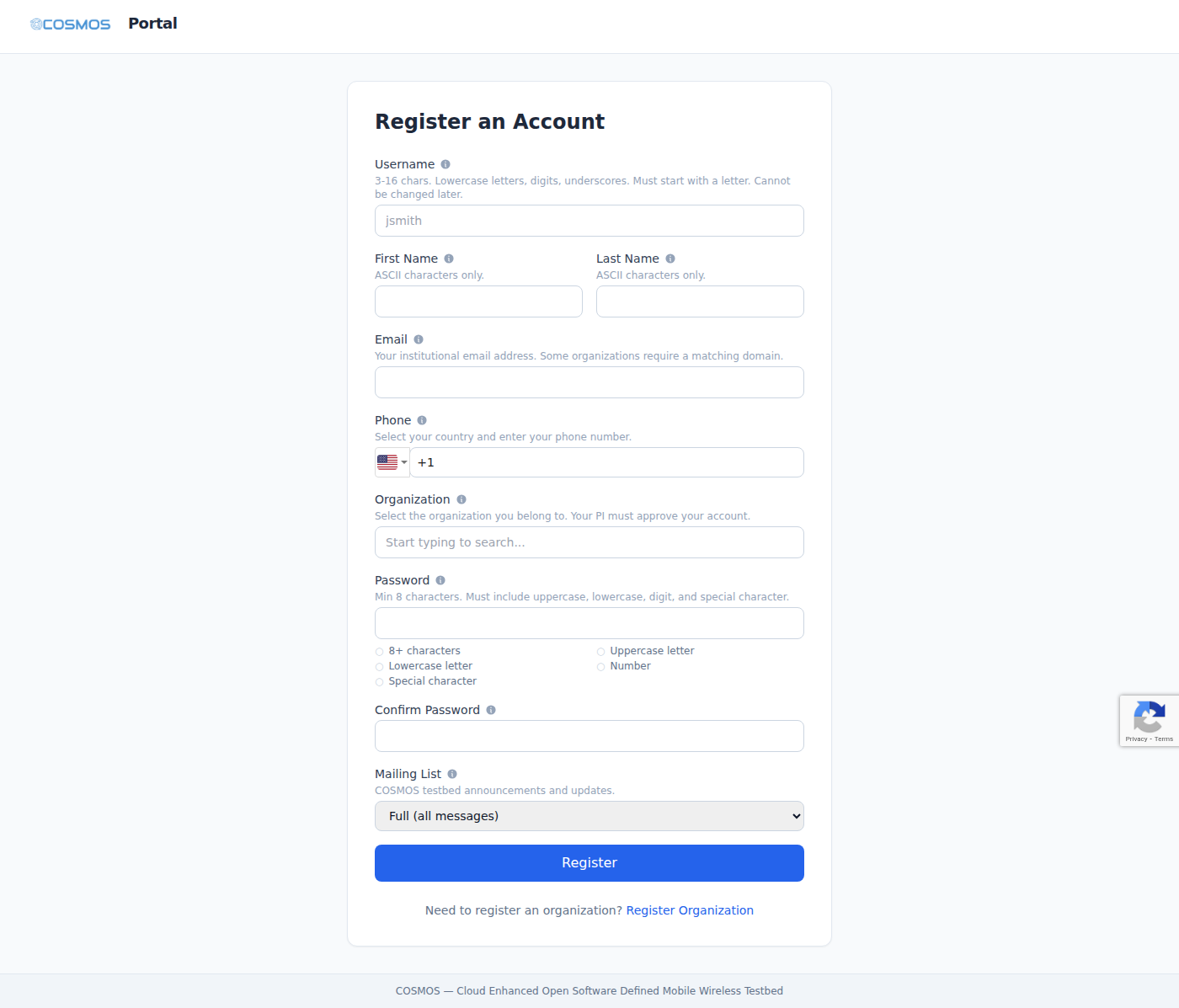
- Go to Register User
- Fill in your details:
- Username — 3-16 characters, lowercase letters, digits, and underscores (must start with a letter)
- Name, Email, Phone — your contact information
- Organization — select your research group from the dropdown (search to filter)
- Password — must be at least 8 characters with uppercase, lowercase, digit, and special character
- Mailing List — choose Full, Digest, or None
- You will receive a confirmation email — click the link within 30 minutes to complete your request
- Your group PI will approve your request
- You will receive a final confirmation email once approved

If your organization is not listed and you are a faculty/staff member, ask your PI to register a new organization first.
Logging In
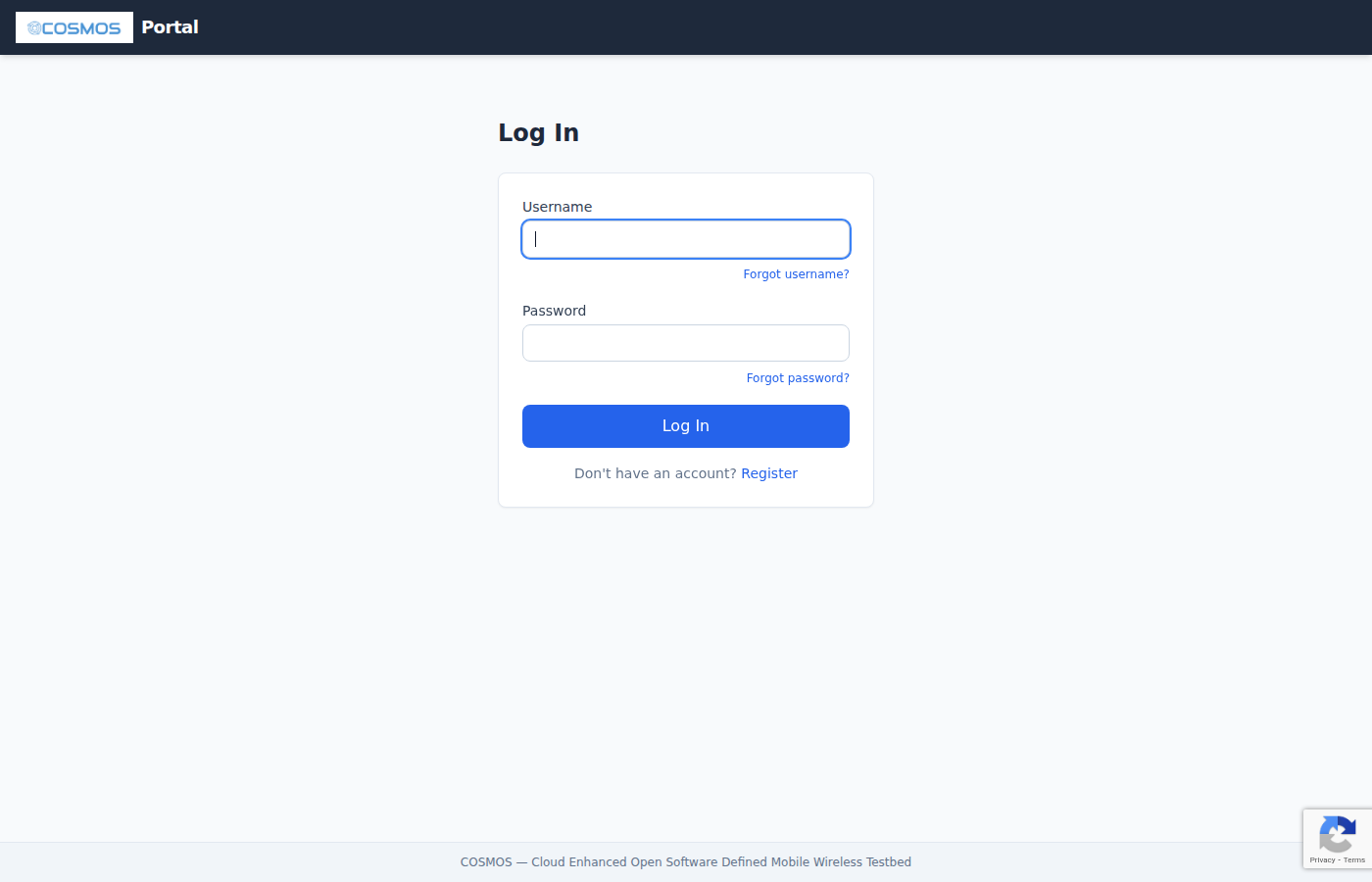
- Go to Portal Login
- Enter your username and password
- You will be taken to the Dashboard

If you forgot your username or password, use the links on the login page to recover them via email.
Dashboard
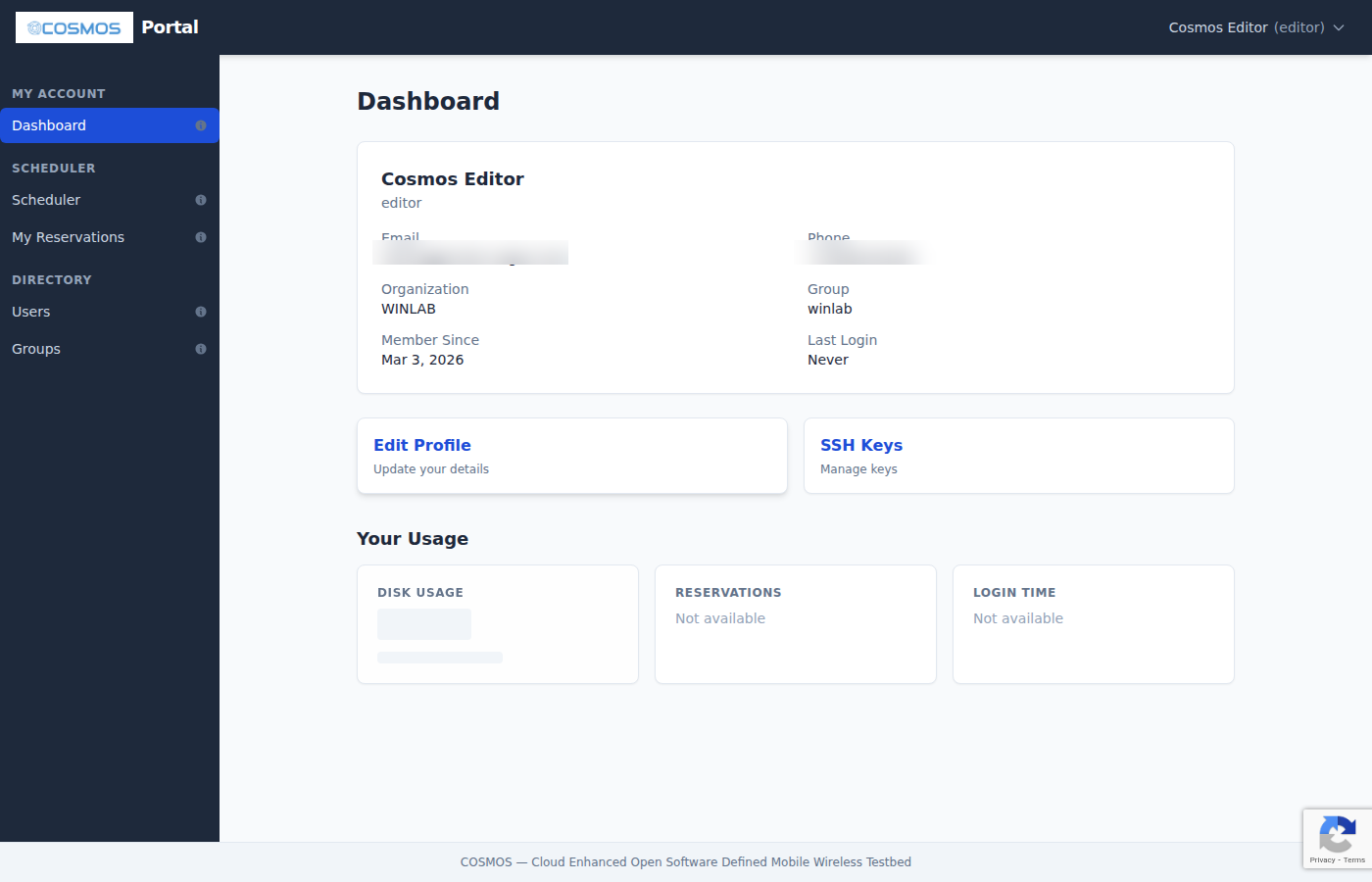
The Dashboard is your home page after logging in. It shows:
- Profile card — your name, username, email, organization, and member-since date
- Quick links — Edit Profile and SSH Keys
- Usage statistics:
- Disk Usage — total storage used across all paths
- Reservations — total reservation count (all-time and last 4 weeks)
- Login Time — total session time and session count

Account Management
Edit Profile
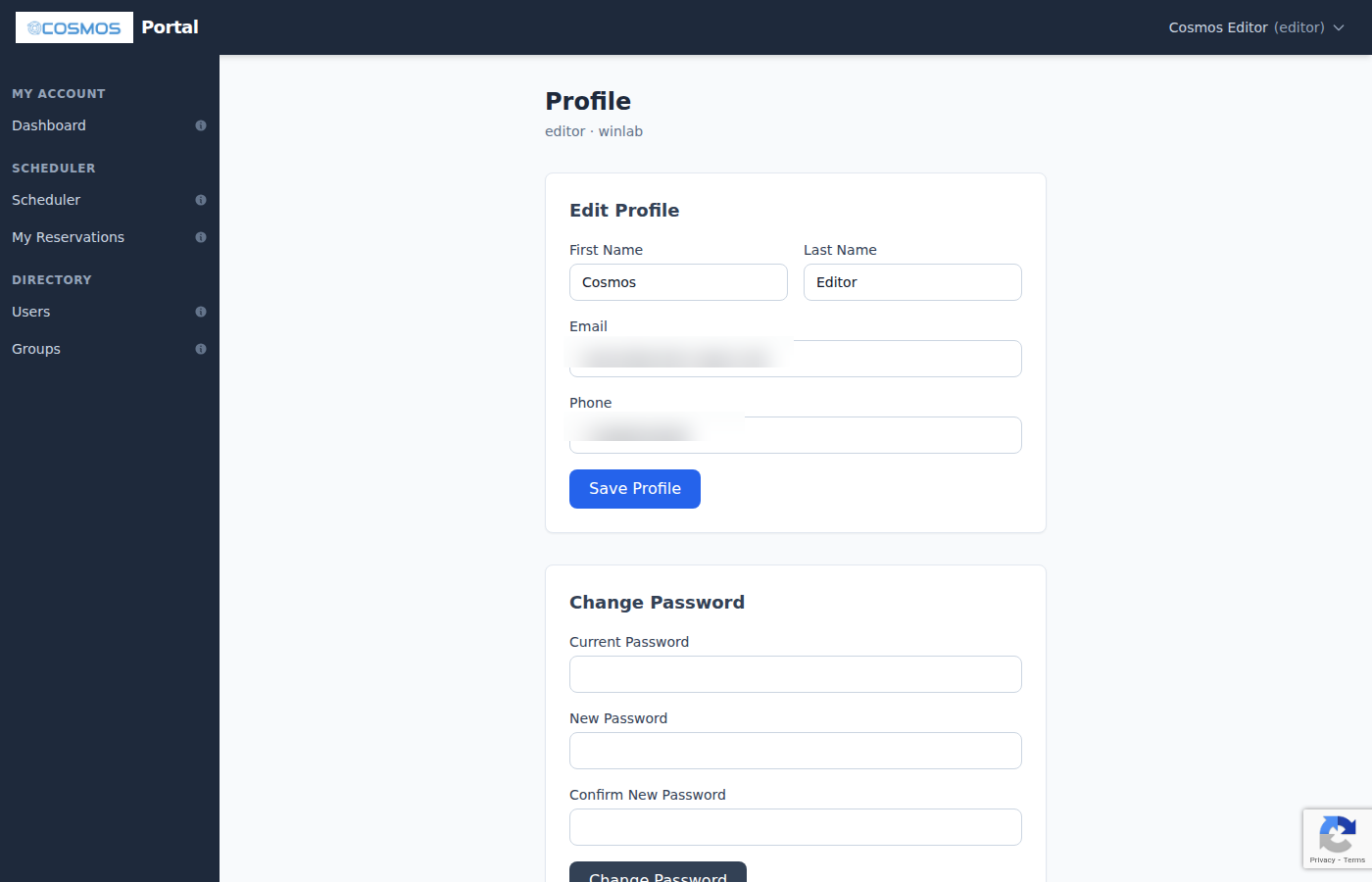
Click your name in the top-right corner and select Edit Profile, or navigate to the Dashboard and click the Edit Profile link.
You can update:
- First and last name
- Email address
- Phone number

Change Password
On the Edit Profile page, scroll down to the Change Password section:
- Enter your current password
- Enter and confirm your new password
- Click Save
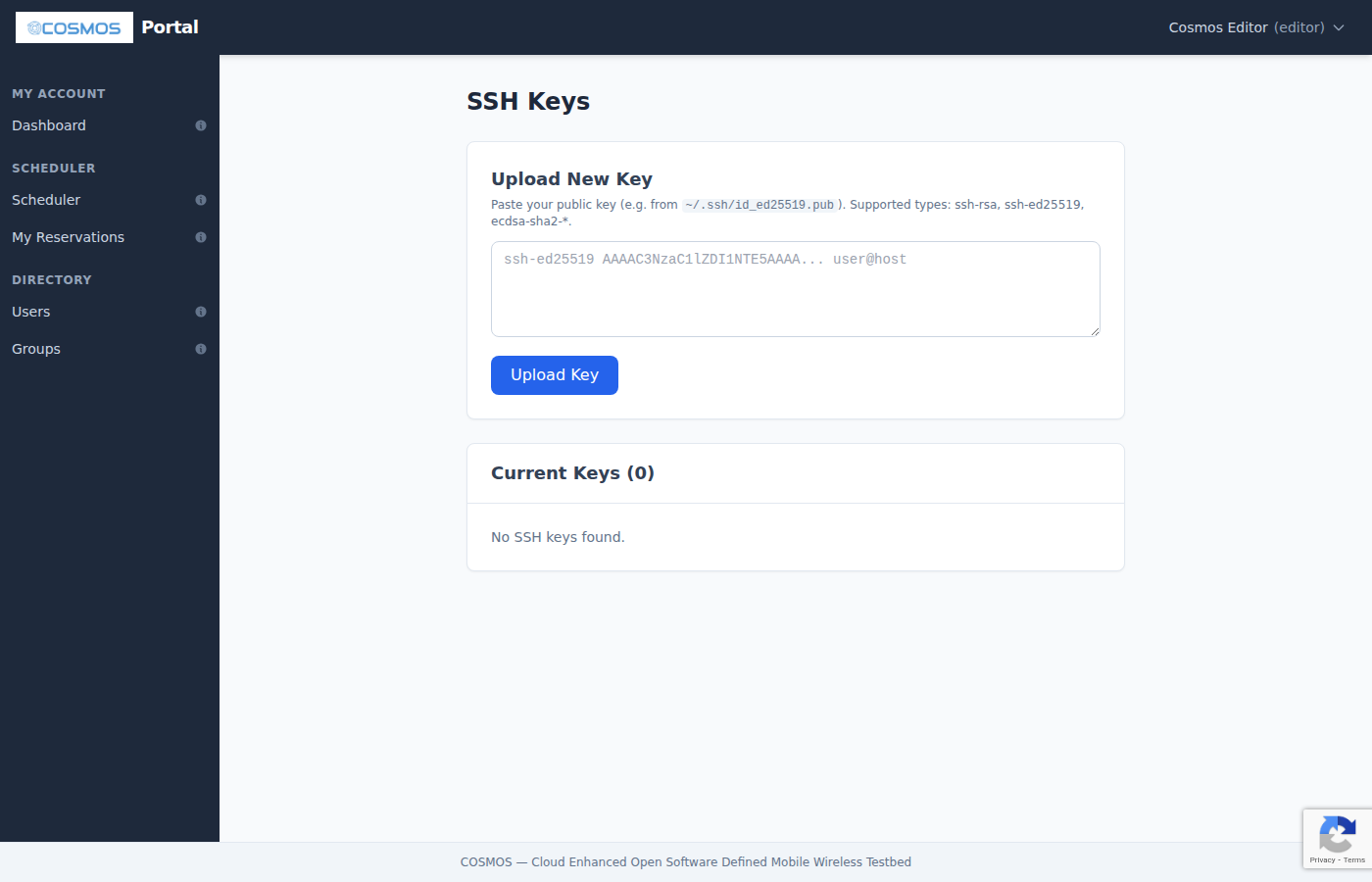
SSH Keys
Click your name in the top-right corner and select SSH Keys to manage your public keys for console access.
- Upload a key — paste your public key (supports ssh-rsa, ssh-ed25519, ecdsa, and other standard formats). The key is validated in real-time before upload.
- View keys — see all uploaded keys with their type and comment
- Delete a key — remove individual keys you no longer need
You can upload multiple keys. These are used for SSH access to testbed consoles during your reservations.

Scheduler
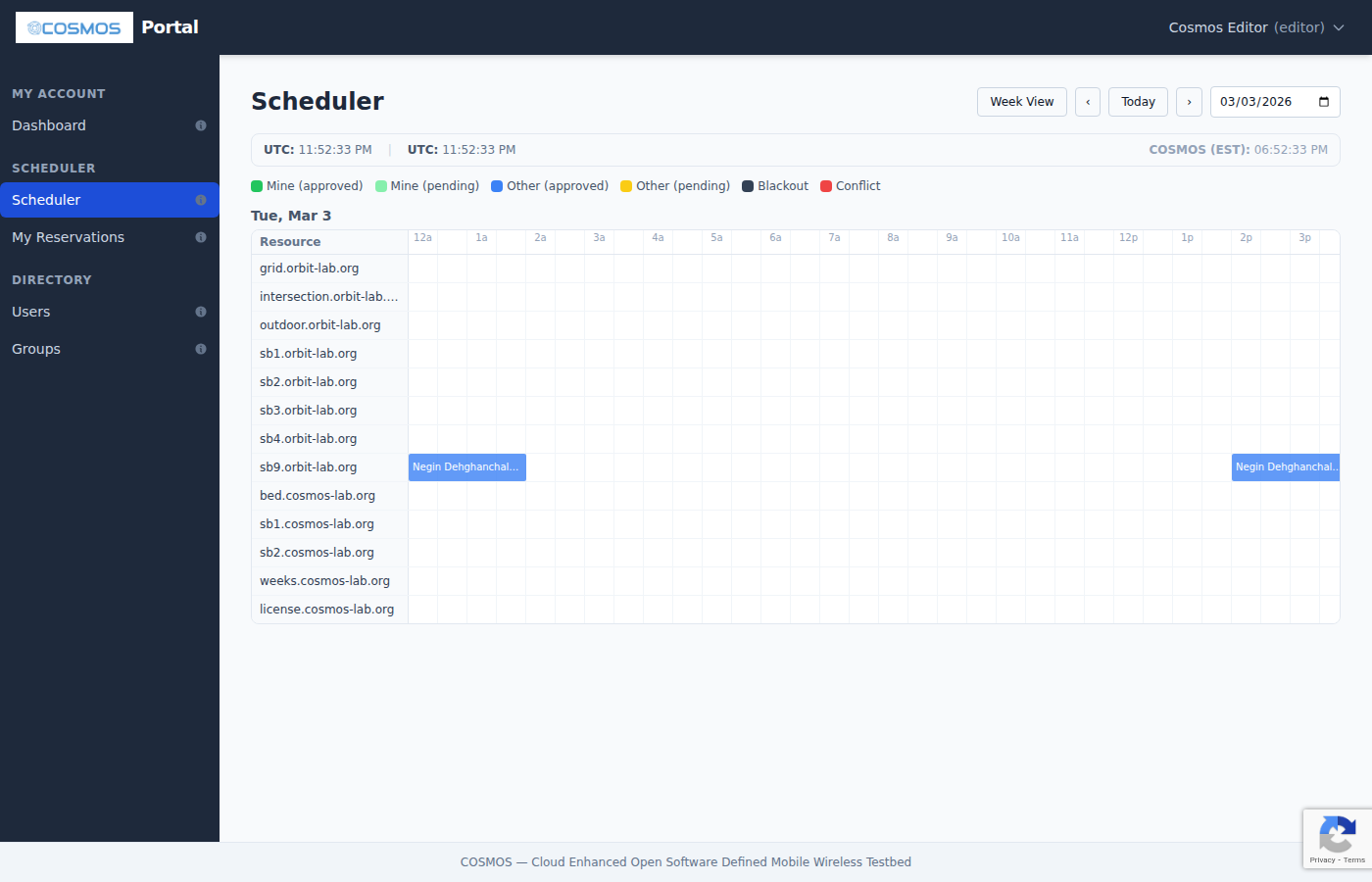
The Scheduler lets you reserve testbed resources (domains/sandboxes) for your experiments.
Viewing the Calendar
Navigate to Scheduler in the left sidebar. The calendar shows:
- Day or Week view (toggle at the top)
- Resources listed on the left, time slots across the top
- Date navigation with Previous/Next/Today buttons and a date picker
- Time is shown in your local timezone, with UTC and COSMOS Eastern Time displayed

Reservation Colors
| Color | Meaning |
|---|---|
| Green (solid) | Your approved reservation |
| Light green | Your pending reservation |
| Blue | Another user's approved reservation |
| Yellow | Another user's pending reservation |
| Red | Conflict (overlapping pending reservations) |
| Gray/Orange | Blackout/maintenance period |
Creating a Reservation
- Click on an empty time slot in the calendar
- In the dialog, configure:
- Start and end time — select your desired time window
- Summary (optional) — a short description of your experiment
- Participants (optional) — search and add other users who should have access
- Group reservation (optional) — select a group to grant access to all members
- Recurrence (optional) — set up weekly or monthly recurring reservations with an end date
- Click Submit — your reservation appears as pending (light green or yellow)
Reservations are approved automatically:
- Requests made before noon are pre-approved for the following day by 2 PM
- Other requests are approved at the start of the time slot (just-in-time)
Competing for a Slot
If another user has a pending reservation on a slot you want, you can click that slot and select Compete for this slot. The system resolves conflicts based on usage — users who have used less testbed time in the last two weeks are given priority. Avoid competing for slots less than 2 hours in the future.
Modifying or Canceling
- Click on your reservation to view its details
- Edit — change the time, duration, or summary
- Cancel — remove a pending or approved reservation
- Delete Series — cancel all future occurrences of a recurring reservation
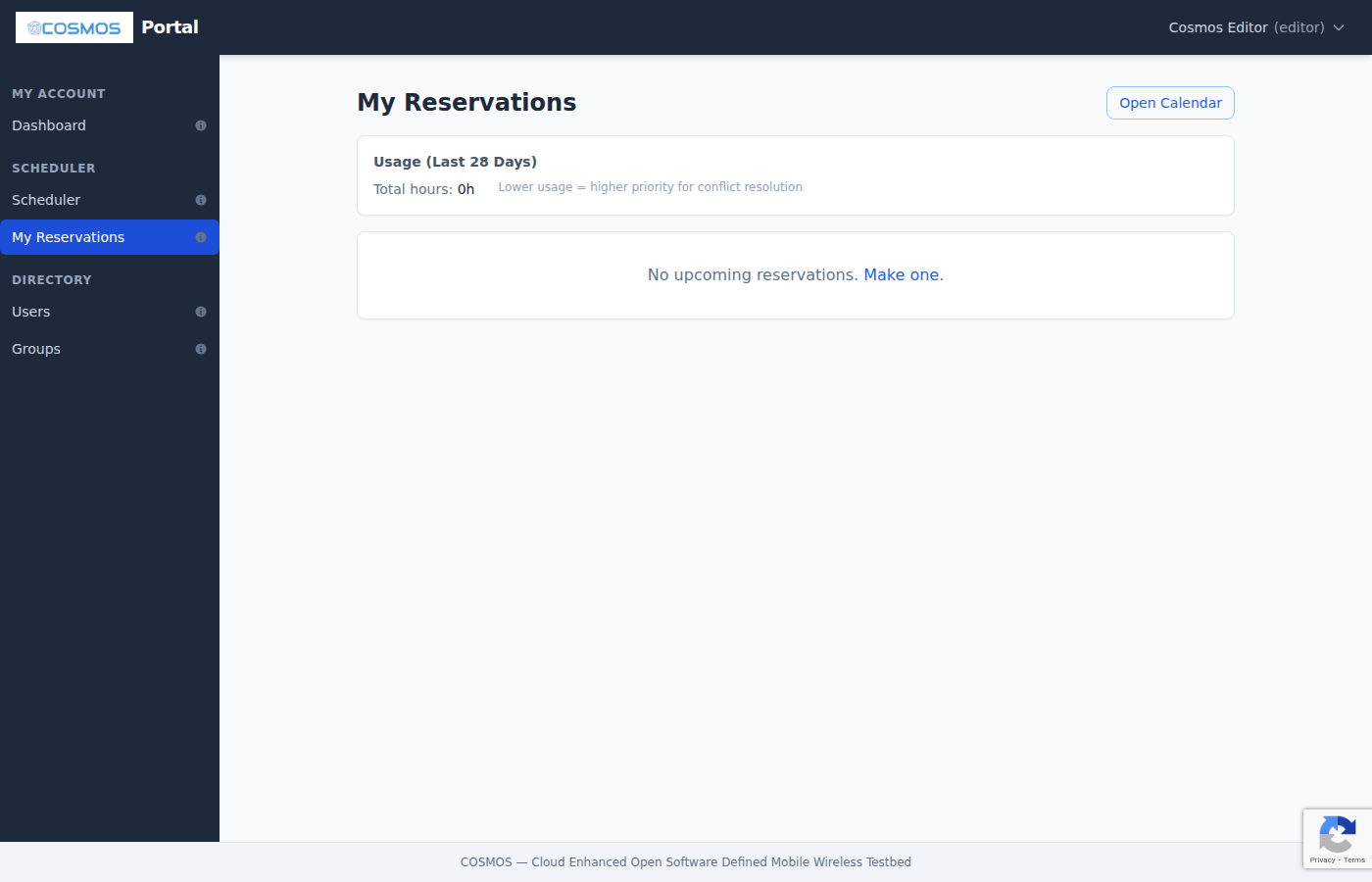
My Reservations
Navigate to My Reservations in the sidebar to see:
- Your usage statistics (total hours in the last 28 days)
- A table of all upcoming reservations with resource, time, duration, and status
- A cancel button for each reservation

Status Pages
Status pages appear in the sidebar only when you have an active or upcoming reservation (within 24 hours).
Node Status
Shows the power state of all testbed nodes as a visual grid. This page is visible when you have any reservation.
RF Matrix
Shows the RF attenuation matrix for sandbox SB4. This page is visible only when you have an SB4 reservation.
Features:
- Visual network topology graph showing connections between ports and devices
- Click on connections to set attenuation values (0-63 dB)
- Toggle Wi Fi/SDR mode for each port
- Reset All — set all attenuations to 0 dB and Wi Fi mode
- Save/Load configurations — save your current matrix setup for reuse (public or private)
- Configurations auto-refresh every 5 seconds
Directory
Users
Navigate to Users in the sidebar to browse all registered users.
- Filter by letter (A-Z) or search by name/username
- Sortable columns: Username, Name, Email, Group, Created date
- Paginated results (20 per page)
Groups
Navigate to Groups to browse all organizations.
- Filter by letter or search
- Click a group name to view its details: members list, PI(s), and subgroups
Navigation Reference
The portal sidebar shows the following sections for regular users:
| Section | Pages | Description |
|---|---|---|
| My Account | Dashboard | Profile summary and usage stats |
| Scheduler | Scheduler | Calendar view for reservations |
| My Reservations | List of your upcoming reservations | |
| Status | Node Status | Testbed node power states (when you have a reservation) |
| RF Matrix - SB4 | RF attenuation matrix (when you have an SB4 reservation) | |
| Directory | Users | Browse all registered users |
| Groups | Browse all organizations |
The top-right user menu provides quick access to Edit Profile, SSH Keys, and Log Out.
Tips
- Mobile friendly — on small screens, the sidebar becomes a hamburger menu
- Hover for help — each sidebar link has an info icon with a tooltip describing the page
- Keyboard shortcuts — press Escape to close dialogs
- Timezone awareness — the scheduler always shows times in your local timezone with UTC reference
Attachments (7)
- portal-login.png (31.4 KB ) - added by 4 months ago.
- portal-register.png (83.4 KB ) - added by 4 months ago.
- portal-dashboard.png (68.4 KB ) - added by 4 months ago.
- portal-profile.png (49.8 KB ) - added by 4 months ago.
- portal-ssh-keys.png (64.7 KB ) - added by 4 months ago.
- portal-scheduler.png (93.3 KB ) - added by 4 months ago.
- portal-my-reservations.png (66.7 KB ) - added by 4 months ago.
Download all attachments as: .zip