wiki:UserGuide/RemoteAccess/Console

Version 6 (modified by msherman, 6 years ago) ( diff )

Site Navigation

  1. COSMOS Testbed Overview
    1. Concepts
    1. Testbed Workflow
    1. Availability and Resource Status
    1. Events and Conferences
  2. Getting Started
    1. Make an Account
    2. Create and Configure SSH Keys
    3. Make a Reservation
    4. Log in to your Reservation
    5. Control Resources with OMF
    6. Run a Hello World Experiment
    7. Get Help and Support
  3. COSMOS/ORBIT User Guide
    1. The COSMOS Portal
    2. Connecting to the Testbed
    3. Running Experiments
    4. Policies and Support
    5. Quick Links
    1. Policies
    1. Account Creation
    1. Camera Streaming
    1. Scheduling and Reservations
    1. Disk Images
    1. Frequently Asked Questions
    1. Resource Control with OMF
  4. COSMOS Portal
    1. Your First Visit
    2. Setting Up Your Account
    3. Reserving Testbed Time
    4. Monitoring Your Experiment
    5. Connecting via SSH
    6. Managing Disk Images
    7. Joining the Community
    8. Browsing Users and Groups
    9. Tips
  5. Account Management
    1. Edit Profile
    2. Change Password
    3. SSH Keys
  6. Portal Dashboard
    1. Profile Card
    2. Usage Statistics
    3. Community Forum
  7. Directory
    1. Users
    2. Groups
    3. Privacy Note
  8. Disk Images
    1. Browsing Images
    2. Image Details
    3. Searching and Sorting
    4. Managing Your Images
    5. Baseline Images
    6. Saving Custom Images
    7. Storage and Retention
  9. Community Forum
    1. Accessing the Forum
    2. Forum Categories
    3. How to Use the Forum
    4. Forum Etiquette
    5. Privacy and Access
  10. Getting Started with the COSMOS Portal
    1. Creating an Account
    2. Logging In
    3. What to Do After Logging In
  11. SSH Access to Testbed Nodes
    1. Access Model
    2. Console Servers
    3. Basic Connection
    4. SSH Config File
    5. SSH Tunneling
    6. File Transfer
    7. Troubleshooting
  12. Scheduler
    1. Calendar View
    2. Reservation Colors
    3. Creating a Reservation
    4. Competing for a Slot
    5. Modifying or Canceling Reservations
    6. My Reservations
    7. Resource Information
  13. Testbed Status
    1. Node Status Grid
    2. RF Matrix Control (SB4)
    3. Understanding Node States During Experiments
    1. Remote Access
    1. Chrome Remote Desktop Setup Page
  14. Installing Chrome Remote Desktop (CRD) on a Custom Image
    1. Measurement & Result Collection
    1. Storage
    1. Support
    1. Contributing to the Wiki
  15. Tutorials
    1. SDR and Wireless
    2. Wireless Digital Twins
    3. Optical Networking
    4. Wired Networking
    5. Edge Computing
    6. 4G/5G Systems
    7. Orchestration Platforms
  16. Architecture
    1. Data Flow
    1. Deployment Map
    1. Domains
    1. Naming Convention
    1. Networks
    1. Optical
  17. Resources, Services and APIs
    1. RF Control
    2. SDR Control
    3. Compute Control
    4. Network Control
    5. Optical Control
  18. Datasets
  19. Hardware Info
    1. Cameras
    1. Compute
    1. FR3 SDRs
    1. Network
    1. Nodes
    1. Optical
    1. RF Subsystems
    1. Antennas
    1. Full-Duplex Radio
    1. RF Front End
    1. Software Defined Radios (SDR)
  20. RF Policies & Compliance
    1. Outdoor Radio Frequency Allocation
    2. Program Experiment License
    3. Spectrum Monitoring
    4. Emergency Stop Procedures
    5. Network and Platform Security

Logging in (also)

After making a reservation for a domain (bed, sb1, sb2, etc), you need to ssh to the console for that domain. This will then give you access to all of the nodes on that domain.

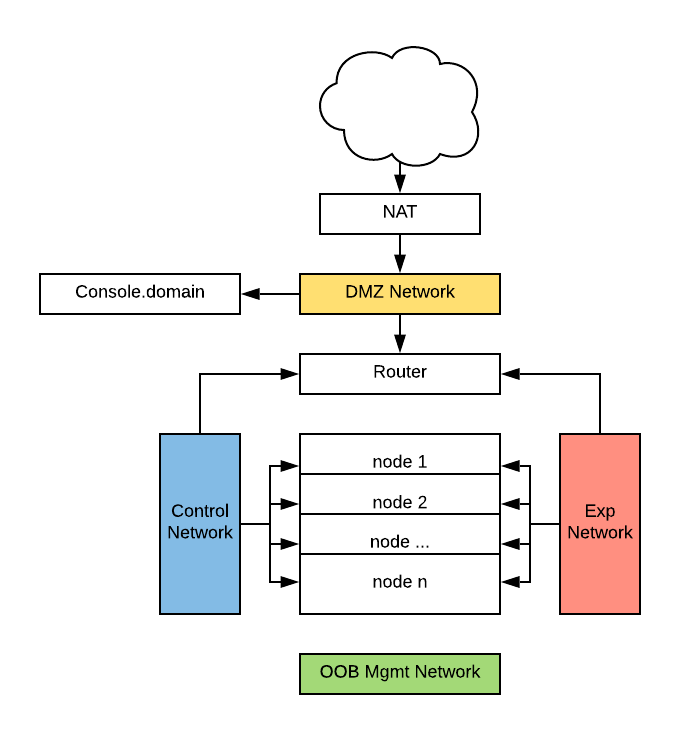
net_arch_routed

The console has an external NAT address, as well as an internal address on the DMZ network, which is used to contact the nodes.

You can access the console through your preferred ssh client. On linux/mac, you can just open a terminal and use ssh, but on windows you will need to install a client such as PuTTY or MobaXterm.

Ssh to (your username)@console.(domain).cosmos-lab.org

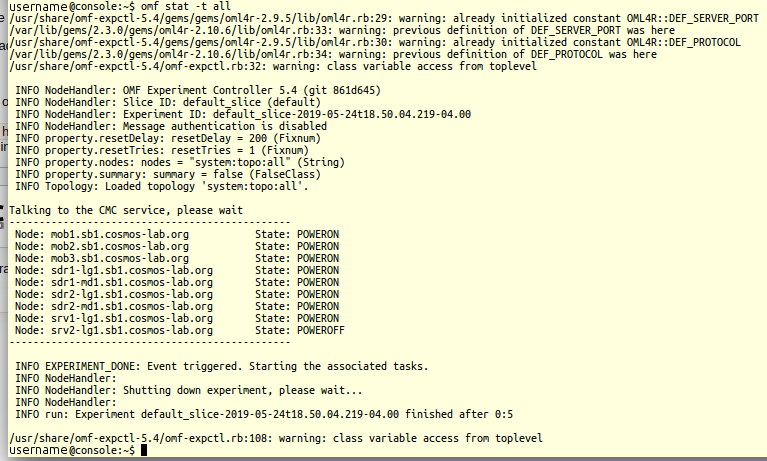
Once you are on the console, you can run "omf stat -t all" to look at the status of all the nodes that you can access from that console.

Now you can load images onto the nodes in order to run your experiments.

Attachments (3)

Download all attachments as: .zip

Note: See TracWiki for help on using the wiki.