| Version 6 (modified by , 3 months ago) ( diff ) |
|---|
Site Navigation
- COSMOS Testbed Overview
- Getting Started
- COSMOS/ORBIT User Guide
- COSMOS Portal
- Account Management
- Portal Dashboard
- Directory
- Disk Images
- Community Forum
- Getting Started with the COSMOS Portal
- SSH Access to Testbed Nodes
- Scheduler
- Testbed Status
- Installing Chrome Remote Desktop (CRD) on a Custom Image
- Tutorials
- Architecture
- Resources, Services and APIs
- Datasets
- Hardware Info
- RF Policies & Compliance
COSMOS Portal User Guide
The COSMOS Portal is the primary web interface for managing your COSMOS and ORBIT testbed account, scheduling experiments, monitoring resources, and interacting with the testbed community. Whether you are a first-time user registering for access or an experienced researcher managing complex multi-domain experiments, the portal provides all the tools you need through a clean, modern interface.
The portal is accessible at https://www.cosmos-lab.org/portal
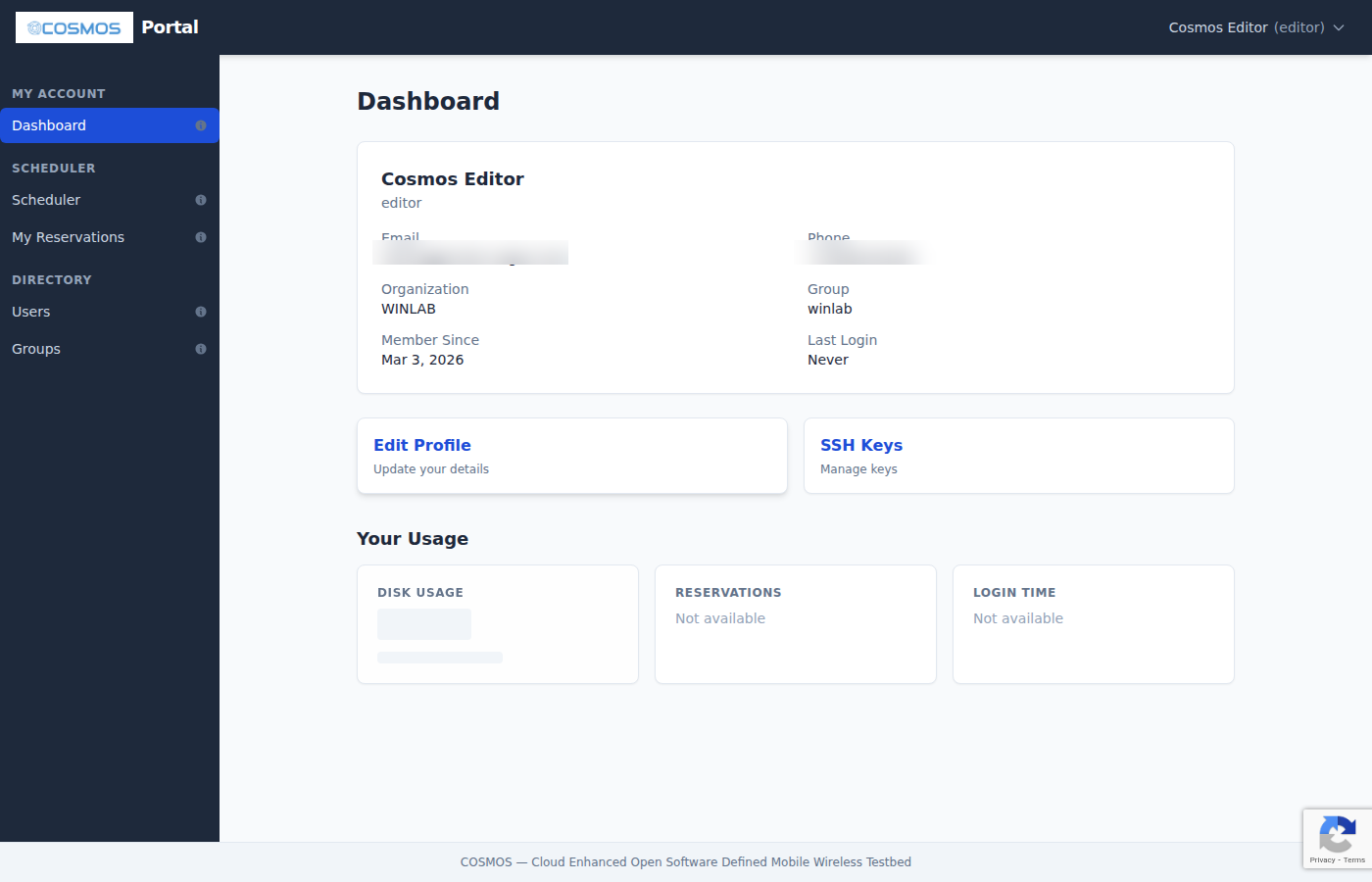
Every authenticated user sees a left-hand sidebar organized into sections. The sections and pages available to you depend on your role (regular user, PI/Group Admin, or Global Admin). This guide covers the features visible to all regular authenticated users. The sidebar collapses into a hamburger menu on mobile devices for a fully responsive experience.
Portal Sections
The portal is organized into the following sections, each documented in detail on its own page:
Getting Started
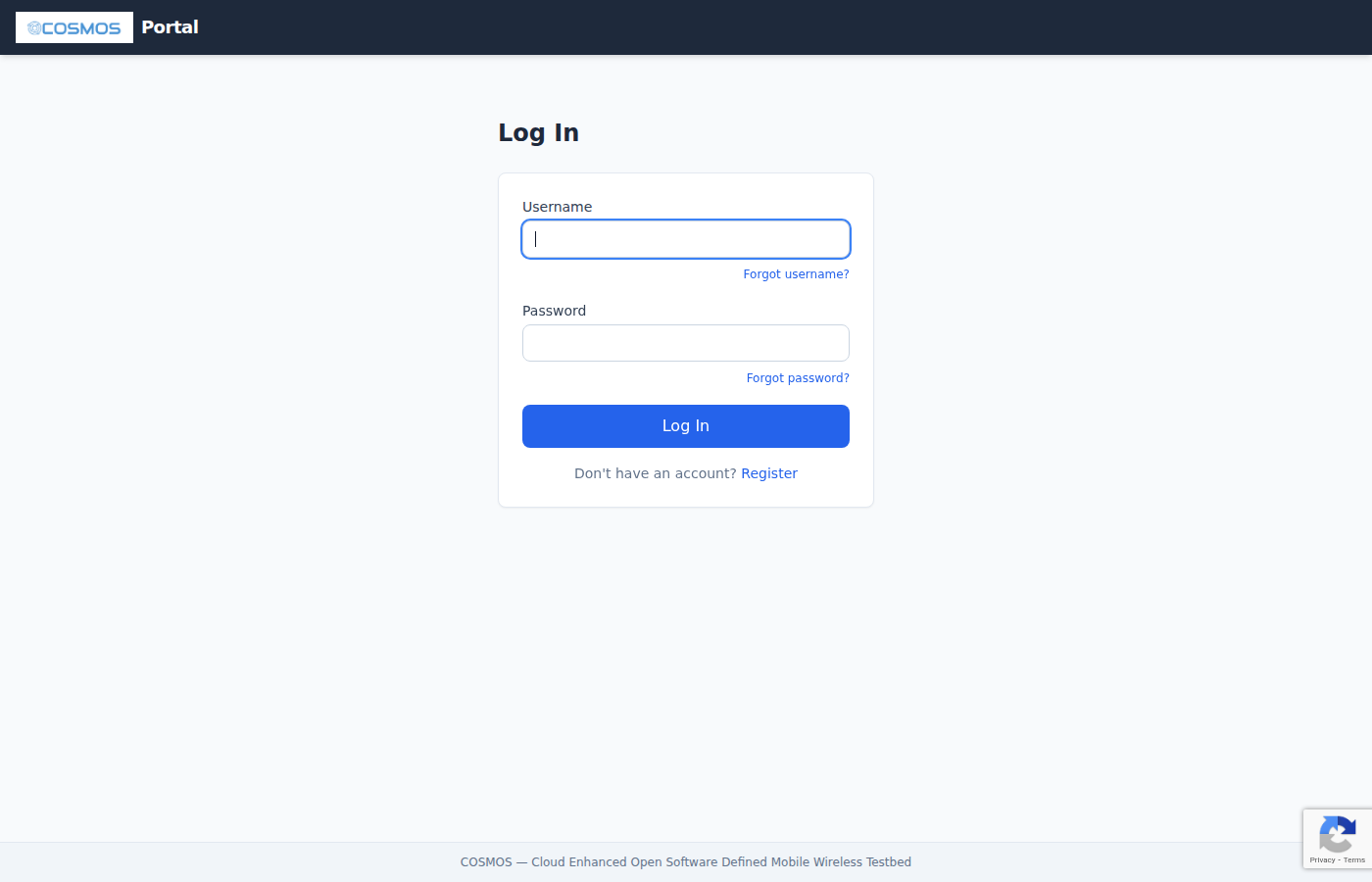
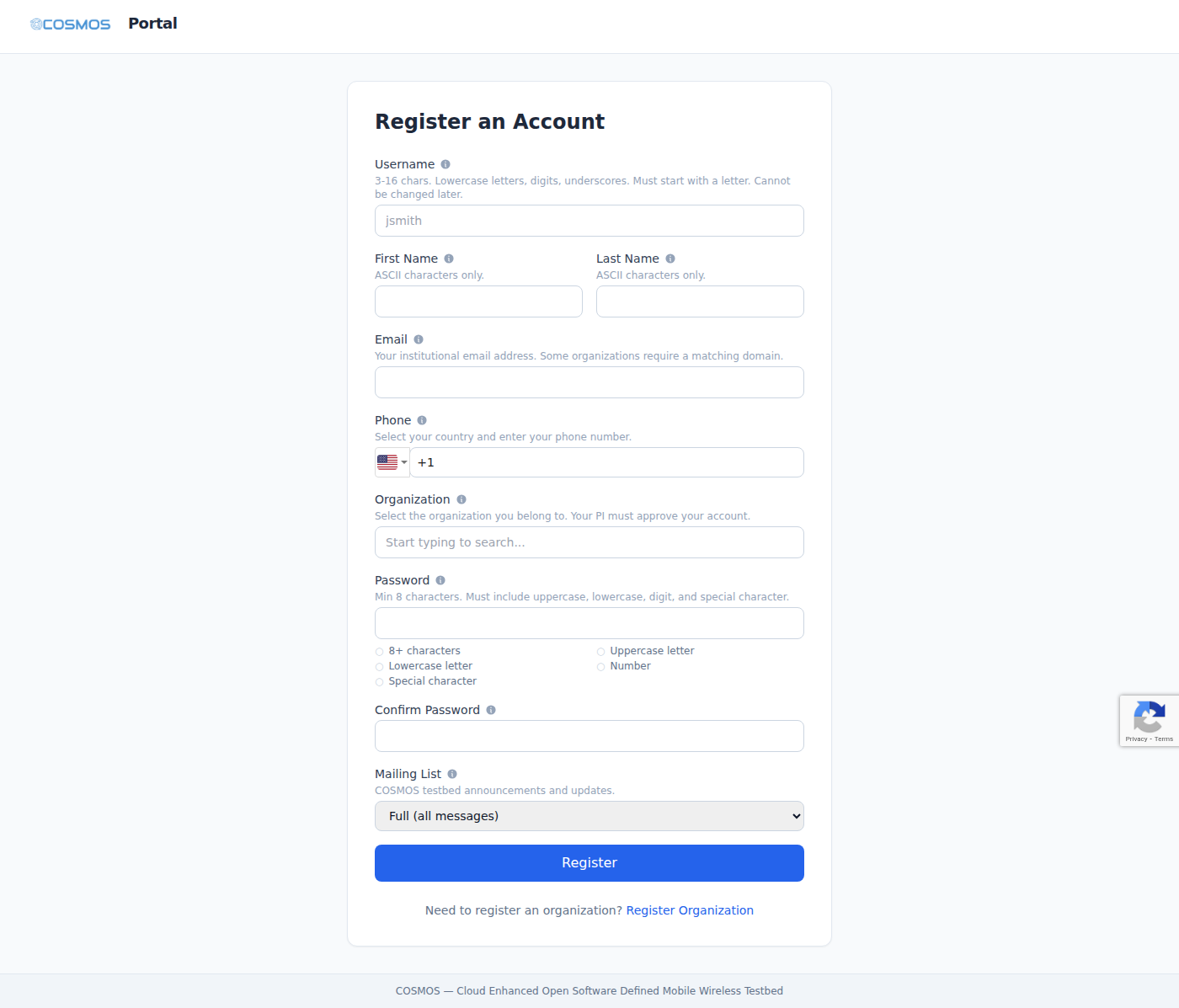
New to COSMOS? Start here. This section walks you through creating an account, activating it via email confirmation, and logging in for the first time. It covers username requirements, password policies, organization selection, and what to expect during the approval process. If you already have an ORBIT account, your credentials work on COSMOS as well.
Dashboard
Your home page after logging in. The Dashboard provides an at-a-glance summary of your profile, disk usage, reservation history, and login activity. It also features quick links to frequently used pages and a Community Forum link that opens a discussion popup where you can interact with other testbed users.
Account Management
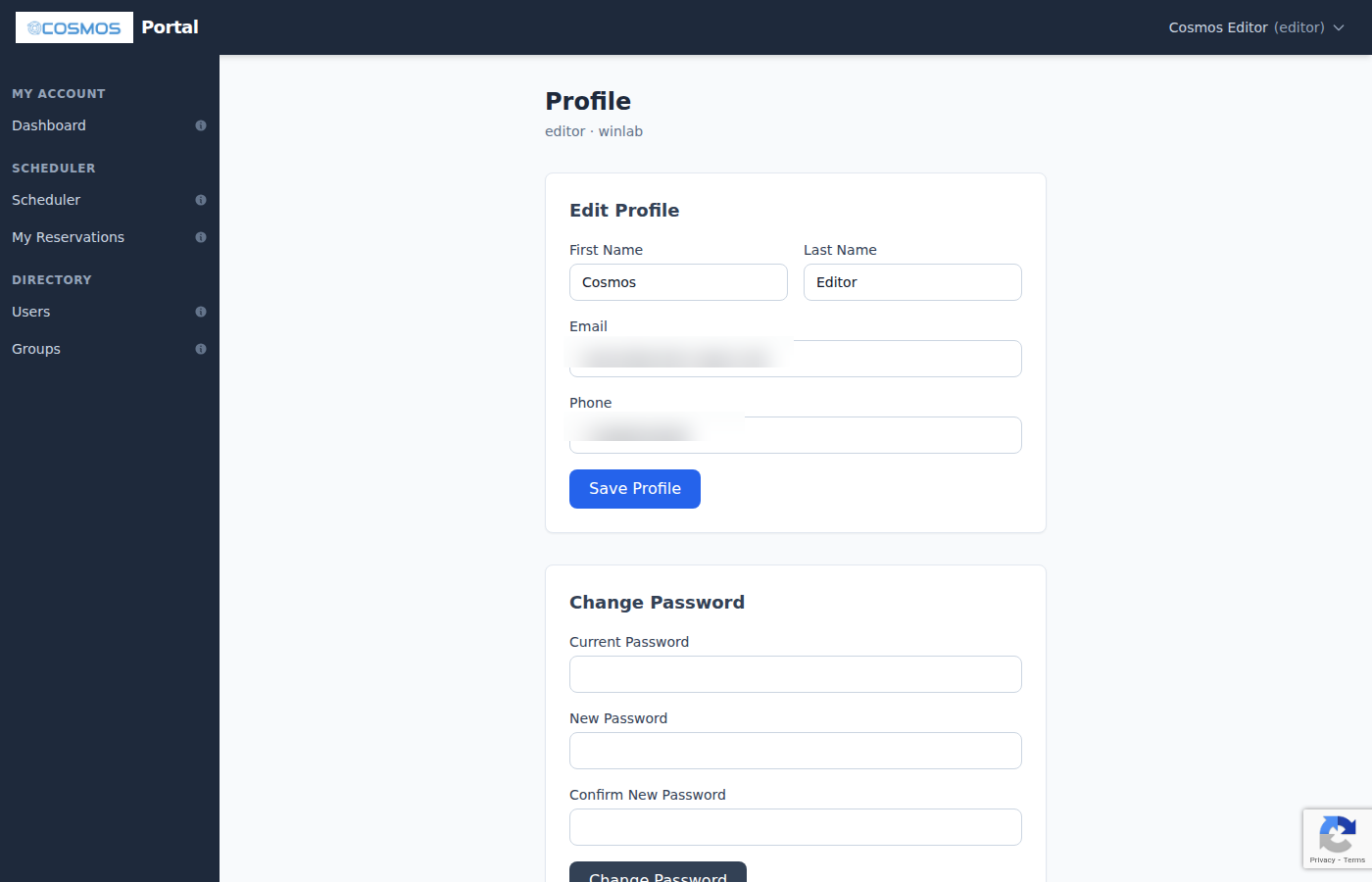
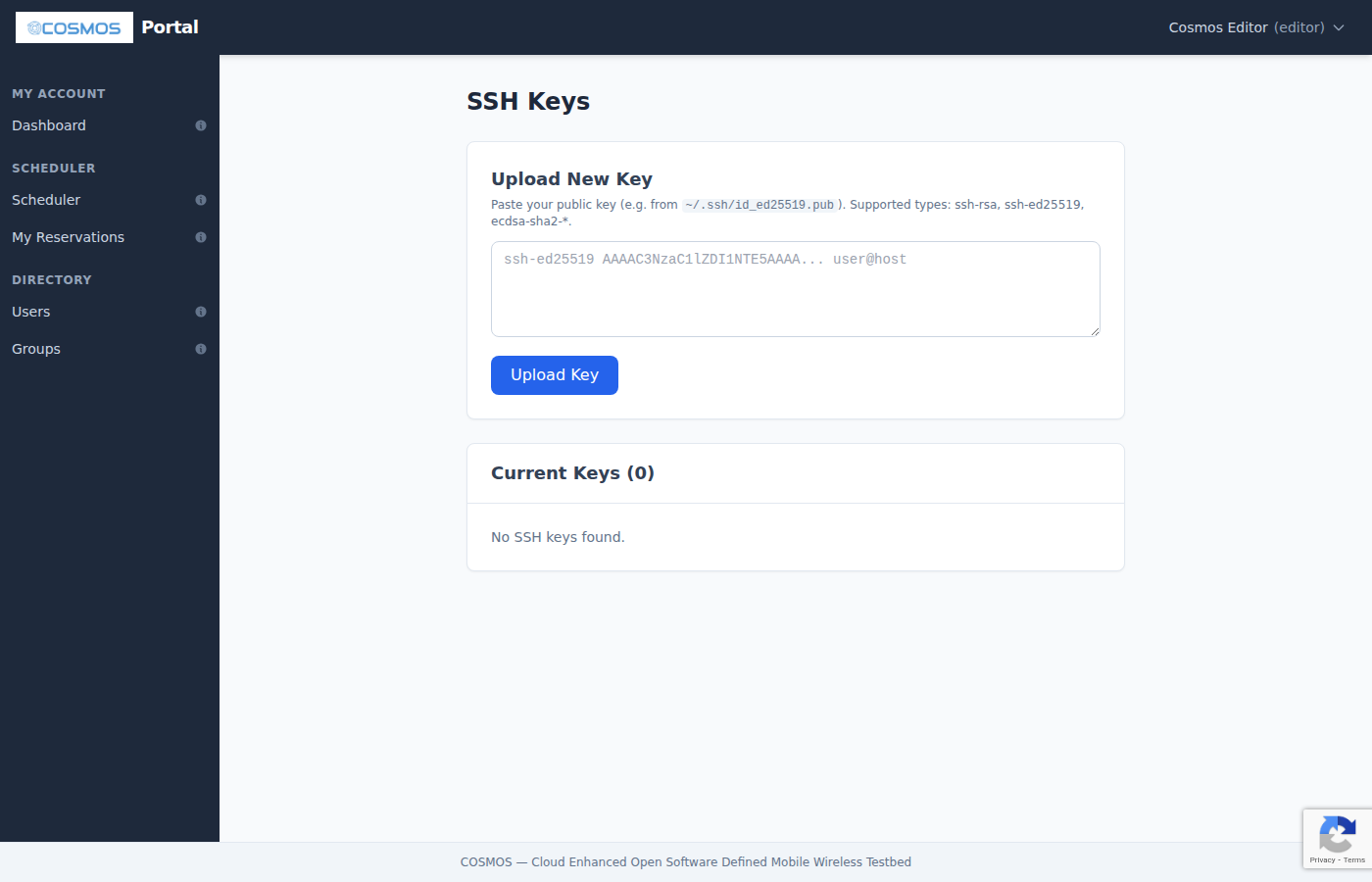
Manage your profile information, change your password, and upload SSH public keys. SSH keys are essential for connecting to testbed nodes during your experiments — the portal validates key format and type in real time and supports modern key types including Ed25519, ECDSA, and FIDO/U2F hardware keys. This section includes step-by-step instructions for generating keys on Linux, macOS, and Windows.
SSH Access
Once you have a reservation and SSH keys configured, you need to connect to testbed nodes. This section explains the SSH connection model: you first connect to a console server (jump host) using your portal username, then hop to individual testbed nodes as root. It covers Proxy Jump configuration, SSH tunneling for web services and Jupyter notebooks, SOCKS proxies, and how to set up your ~/.ssh/config for convenient access.
Scheduler
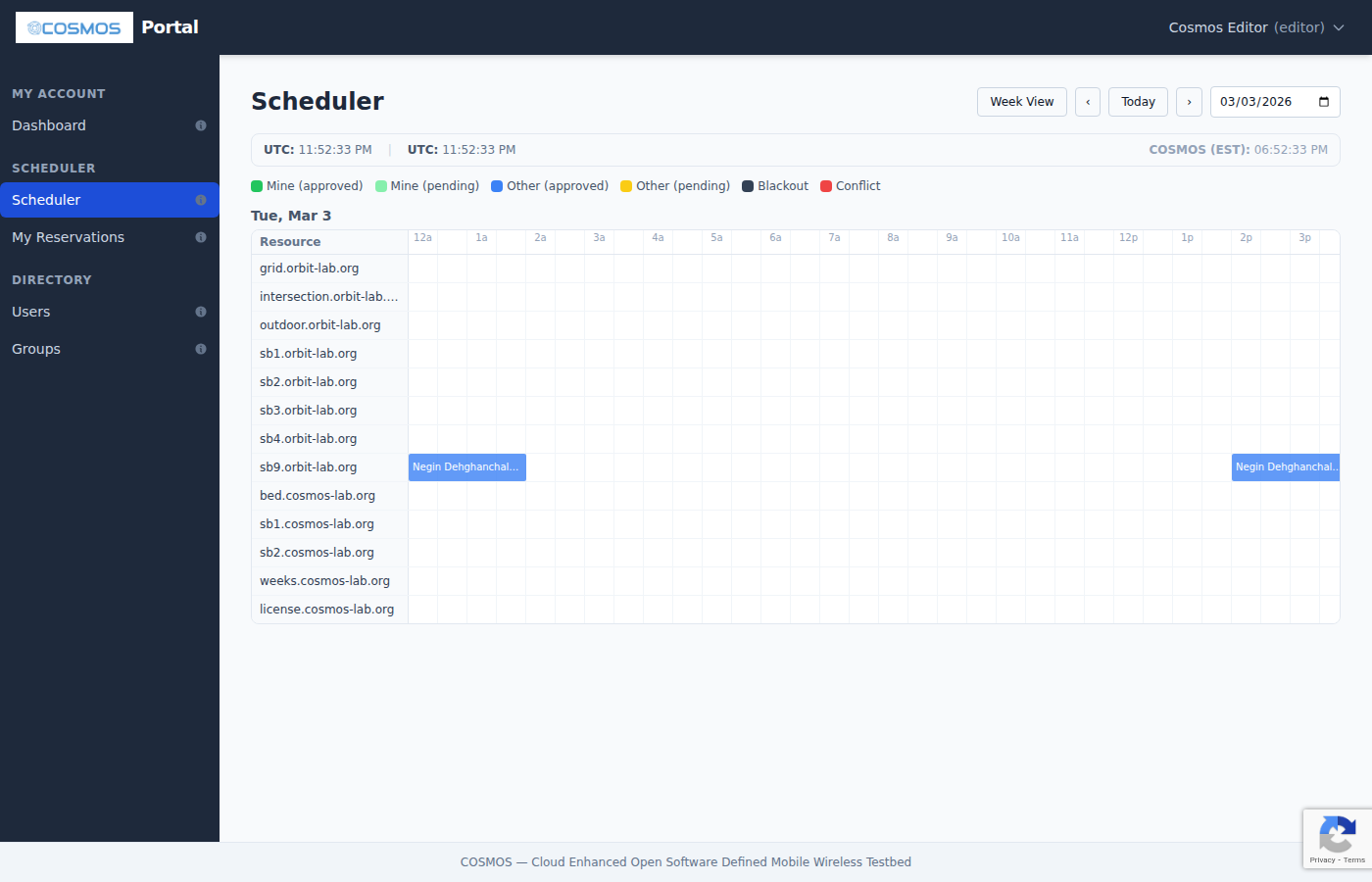
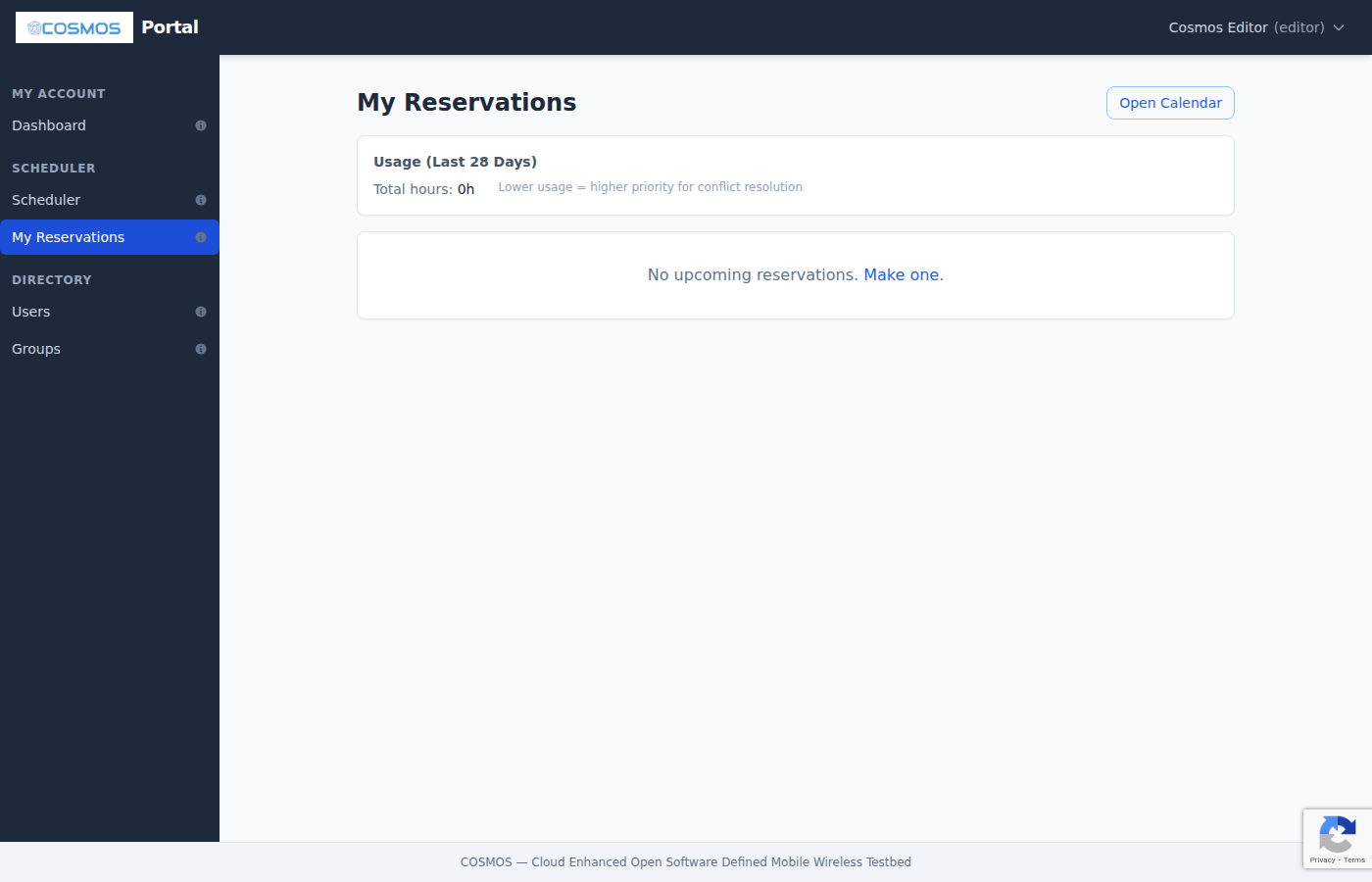
The Scheduler is a calendar-based reservation system that gives you exclusive access to testbed domains and sandboxes during your time slot. This section explains how to navigate the calendar, create single and recurring reservations, invite collaborators, compete for contested time slots, and understand the automatic approval algorithm. It also documents the color coding system and the My Reservations management page.
Testbed Status
During active reservations, Status pages appear in the sidebar showing real-time information about the testbed domain you have reserved. The primary status page displays a visual grid of all nodes with color-coded power states (on, off, unreachable). For SB4 reservations, an RF Matrix control page lets you interactively adjust RF attenuation values between nodes.
Disk Images
The Disk Images page lets you browse, search, and manage testbed disk images. You can view your own images, publicly available images shared by other users, and (for admins) the complete image library. Each image shows its name, owner, size, creation date, and a description. You can also manage image visibility (public/private) and delete images you own.
Community Forum
The COSMOS Community Forum is an integrated discussion platform where testbed users can ask questions, share experiment results, discuss best practices, and get help from the community and testbed administrators. The forum opens in a popup window so you can keep it alongside the portal while working. It uses single sign-on — if you are logged into the portal, you are automatically logged into the forum.
Directory
The Directory section lets you browse the COSMOS/ORBIT user community. You can search and filter the complete list of registered users by name, username, or email, and browse all registered organizations with their members and PIs.
Quick Navigation Reference
| Sidebar Section | Page | Description |
|---|---|---|
| My Account | Dashboard | Profile summary, quick links, usage statistics |
| Community Forum | Discussion forum (opens in popup window) | |
| Scheduler | Scheduler | Calendar-based reservation system |
| My Reservations | List and manage your upcoming reservations | |
| Status | Testbed Status | Node power state grid (visible during active reservations) |
| RF Matrix (SB4) | RF attenuation matrix control (SB4 reservations only) | |
| Directory | Users | Browse all registered users |
| Groups | Browse all organizations and their members | |
| Disk Images | Browse and manage testbed disk images |
The top-right corner of the portal shows your name with a dropdown menu providing quick access to Edit Profile, SSH Keys, and Log Out.
Tips and Troubleshooting
- Mobile friendly — on small screens, the sidebar collapses into a hamburger menu accessible from the top-left corner.
- Hover for help — each sidebar link has a small info icon; hover over it to see a tooltip describing the page.
- Keyboard shortcuts — press Escape to close any modal dialog.
- Session timeout — if your session expires, the portal redirects you to the login page. Your last URL is preserved so you return to the same page after logging in.
- Can't log in — use the Forgot Password or Forgot Username links on the login page. If your account is still pending approval, contact your group PI.
- SSH connection refused — verify that your reservation is currently active (approved, not just pending) and that your public key is uploaded in the SSH Keys page. See the SSH Access guide for detailed troubleshooting.
- Can't see status pages — Status pages only appear when you have a current or upcoming reservation. Global administrators see all status pages.
External Resources
- COSMOS Project Homepage
- ORBIT Lab Homepage
- COSMOS Wiki
- OpenSSH Project — the SSH implementation used on all testbed nodes
Attachments (7)
- portal-login.png (31.4 KB ) - added by 4 months ago.
- portal-register.png (83.4 KB ) - added by 4 months ago.
- portal-dashboard.png (68.4 KB ) - added by 4 months ago.
- portal-profile.png (49.8 KB ) - added by 4 months ago.
- portal-ssh-keys.png (64.7 KB ) - added by 4 months ago.
- portal-scheduler.png (93.3 KB ) - added by 4 months ago.
- portal-my-reservations.png (66.7 KB ) - added by 4 months ago.
Download all attachments as: .zip