| Version 13 (modified by , 5 years ago) ( diff ) |
|---|
Site Navigation
- COSMOS Testbed Overview
- Getting Started
- COSMOS/ORBIT User Guide
- COSMOS Portal
- Account Management
- Portal Dashboard
- Directory
- Disk Images
- Community Forum
- Getting Started with the COSMOS Portal
- SSH Access to Testbed Nodes
- Scheduler
- Testbed Status
- Installing Chrome Remote Desktop (CRD) on a Custom Image
- Tutorials
- Architecture
- Resources, Services and APIs
- Datasets
- Hardware Info
- RF Policies & Compliance
IPSEC VPN
We maintain point to point connections to link various resources to the testbed, mostly at layer 2 for networking experiments. This consists of dialable links over internet2, as well as tunnels over the public internet.
User VPN Service
Connect to the following endpoints using your COSMOS username and password. This will only be active during your reservation.
Server Subnet Description vpn.bed.cosmos-lab.org 10.110.0.0/16 COSMOS Main Testbed vpn.sb1.cosmos-lab.org 10.37.0.0/16 COSMOS SB1 vpn.sb2.cosmos-lab.org 10.116.0.0/16 COSMOS SB2
Instructions per Client OS
Windows
Windows PowerShell commands:
Domain Windows PowerShell Commands SB1 Add-VpnConnection -Name "COSMOS SB1" -ServerAddress vpn.sb1.cosmos-lab.org -DnsSuffix sb1.cosmos-lab.org -TunnelType IKEv2 -EncryptionLevel Required -AuthenticationMethod EAP -SplitTunneling -RememberCredential -PassThruAdd-VpnConnectionRoute -ConnectionName "COSMOS SB1" -DestinationPrefix 10.37.0.0/16 -PassThruSB2 Add-VpnConnection -Name "COSMOS SB2" -ServerAddress vpn.sb2.cosmos-lab.org -DnsSuffix cosmos-lab.org -TunnelType IKEv2 -EncryptionLevel Required -AuthenticationMethod EAP -SplitTunneling -RememberCredential -PassThruAdd-VpnConnectionRoute -ConnectionName "COSMOS SB2" -DestinationPrefix 10.116.0.0/16 -PassThruMain Testbed Add-VpnConnection -Name "COSMOS Main Testbed" -ServerAddress vpn.bed.cosmos-lab.org -DnsSuffix cosmos-lab.org -TunnelType IKEv2 -EncryptionLevel Required -AuthenticationMethod EAP -SplitTunneling -RememberCredential -PassThruAdd-VpnConnectionRoute -ConnectionName "COSMOS Main Testbed" -DestinationPrefix 10.110.0.0/16 -PassThru
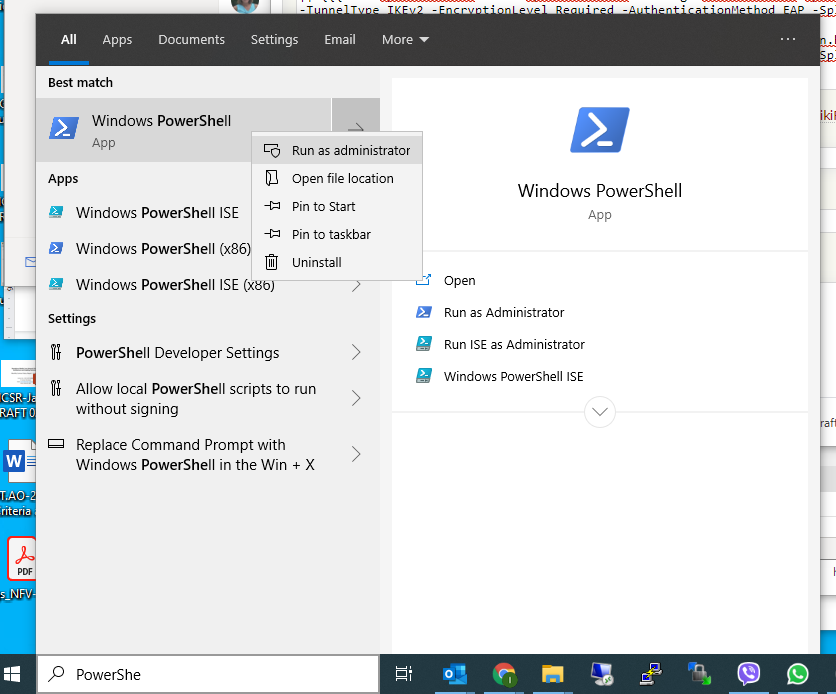
Open the PowerShell command window as administrator

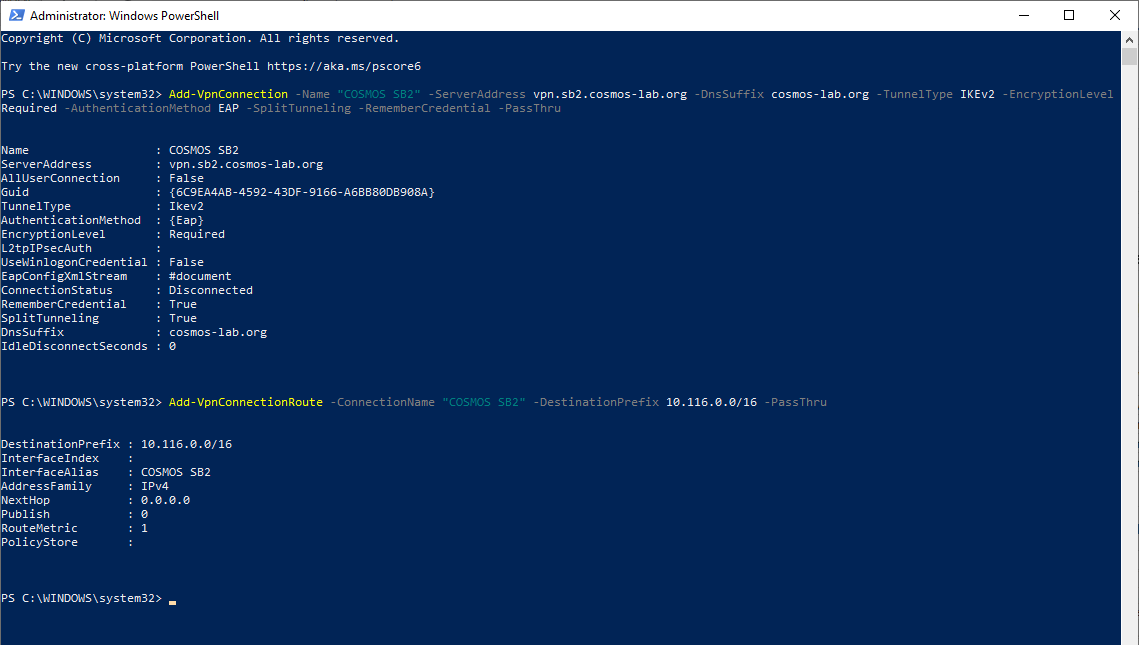
Cut and paste the pair of commands into the PowerShell window as show in figure below:

Alternatively, [download the Windows PowerShell script] to your local machine, right-click on it and run it as administrator. This will create three VPN connections for the three COSMOS domains.
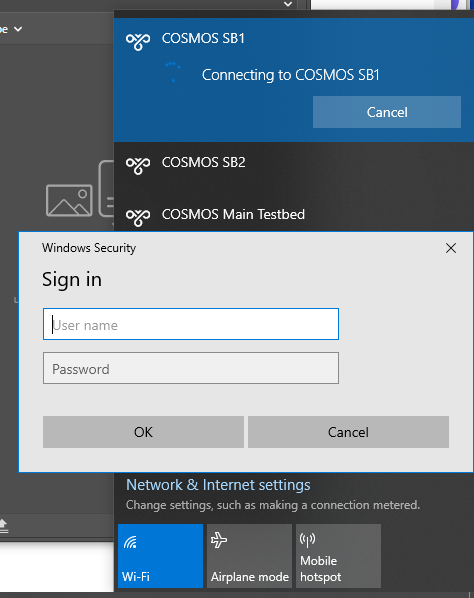
Once VPN connection(s) are created, you will be able to bring the connection menu up by left mouse click on the network icon on the Windows task bar:

Selecting the appropriate connection (for which you must have current reservation) will bring up the prompt for username and password (only the very first time that particular VPN connection is activated):

Linux
Comming soon
MacOS
Comming soon
Attachments (19)
-
VPN1.png
(134.2 KB
) - added by 6 years ago.
VPN Menu
-
VPN2.png
(92.7 KB
) - added by 6 years ago.
VPN Username/Password
-
PowerShell1.png
(100.5 KB
) - added by 6 years ago.
Opening PowerShell Command Window
-
PowerShell2.png
(47.5 KB
) - added by 6 years ago.
Executing PowerShell Commands
-
COSMOS-VPN-Setup.ps1
(964 bytes
) - added by 6 years ago.
PowrShell Script for COSMOS VPN
-
settings.png
(55.7 KB
) - added by 5 years ago.
Network settings for Ubuntu
-
strongswanconfig.png
(64.0 KB
) - added by 5 years ago.
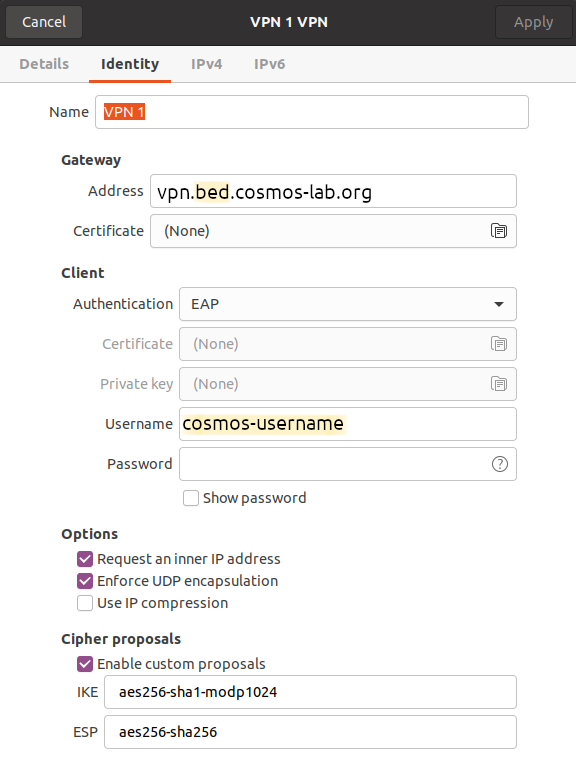
strongswan configuration for ubuntu
-
hostlookup.png
(12.7 KB
) - added by 5 years ago.
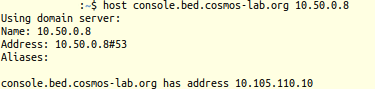
how to look up host ip address
-
vpnenable.png
(6.5 KB
) - added by 5 years ago.
How to enable vpn through ubuntu settings
- mac_vpn_01.png (95.9 KB ) - added by 5 years ago.
- mac_vpn_02.png (83.8 KB ) - added by 5 years ago.
- mac_vpn_03.png (37.7 KB ) - added by 5 years ago.
- mac_vpn_04.png (38.5 KB ) - added by 5 years ago.
- mac_vpn_05.png (39.3 KB ) - added by 5 years ago.
- mac_vpn_06.png (39.3 KB ) - added by 5 years ago.
- mac_vpn_07.png (42.4 KB ) - added by 5 years ago.
- mac_vpn_08.png (40.5 KB ) - added by 5 years ago.
- mac_vpn_09.png (39.3 KB ) - added by 5 years ago.
- mac_vpn_10.png (14.9 KB ) - added by 5 years ago.
Download all attachments as: .zip