| Version 69 (modified by , 5 years ago) ( diff ) |
|---|
Site Navigation
- COSMOS Testbed Overview
- Getting Started
- COSMOS/ORBIT User Guide
- COSMOS Portal
- Account Management
- Portal Dashboard
- Directory
- Disk Images
- Community Forum
- Getting Started with the COSMOS Portal
- SSH Access to Testbed Nodes
- Scheduler
- Testbed Status
- Installing Chrome Remote Desktop (CRD) on a Custom Image
- Tutorials
- Architecture
- Resources, Services and APIs
- Datasets
- Hardware Info
- RF Policies & Compliance
Using Sivers mmWave equipment on COSMOS SandBox1
Upgrade in Progress (SB1 Diagram)
Description
COSMOS sandbox 1 hosts 3 different pairs of mmWave frontends - 1) 60GHz SiversIMA transceivers 2) 28GHz IBM PAAM boards 3) 28GHz Interdigital MHUs. This tutorial demonstrates how to transmit and receive a signal in the 60GHz mmWave spectrum using the Sivers front-ends. The Sivers 57-66GHz transceiver system (EVK06002 - evaluation kit for TRX BF/01) is optimized for Wi Gig applications and is compliant with 802.11ad standard. The transceiver includes 16 element patch antenna arrays for TX and RX, and provides beam steering capabilities with an application GUI or python API over USB interface.
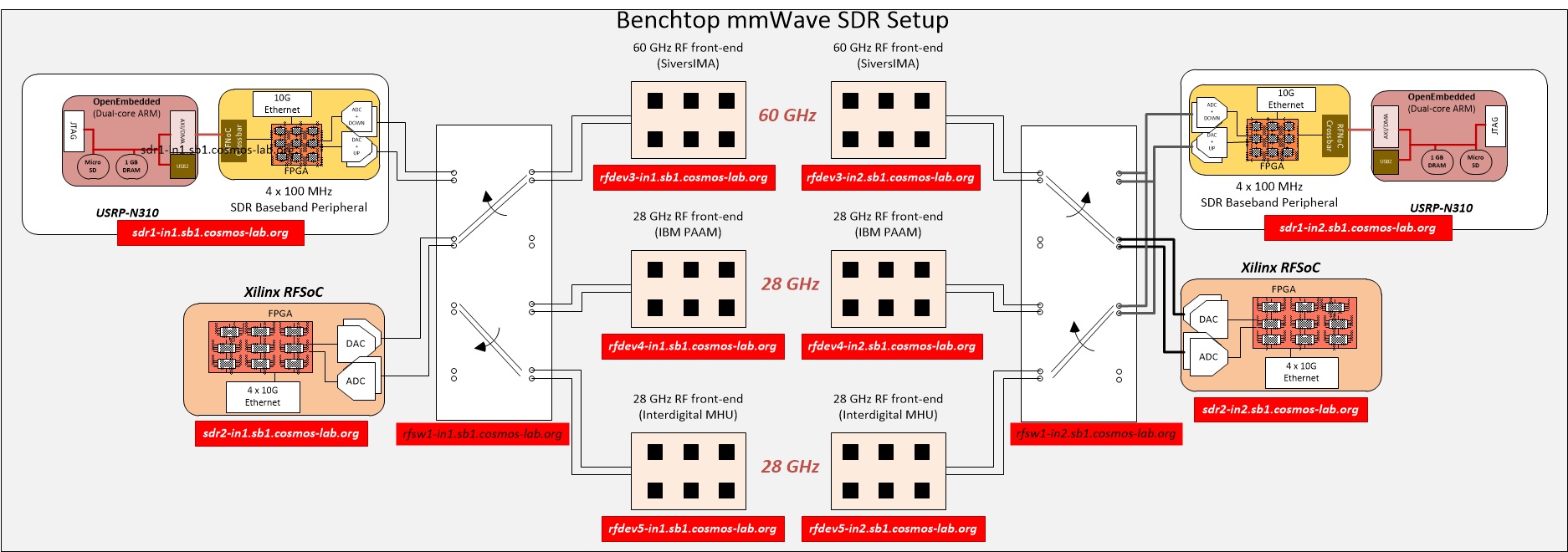
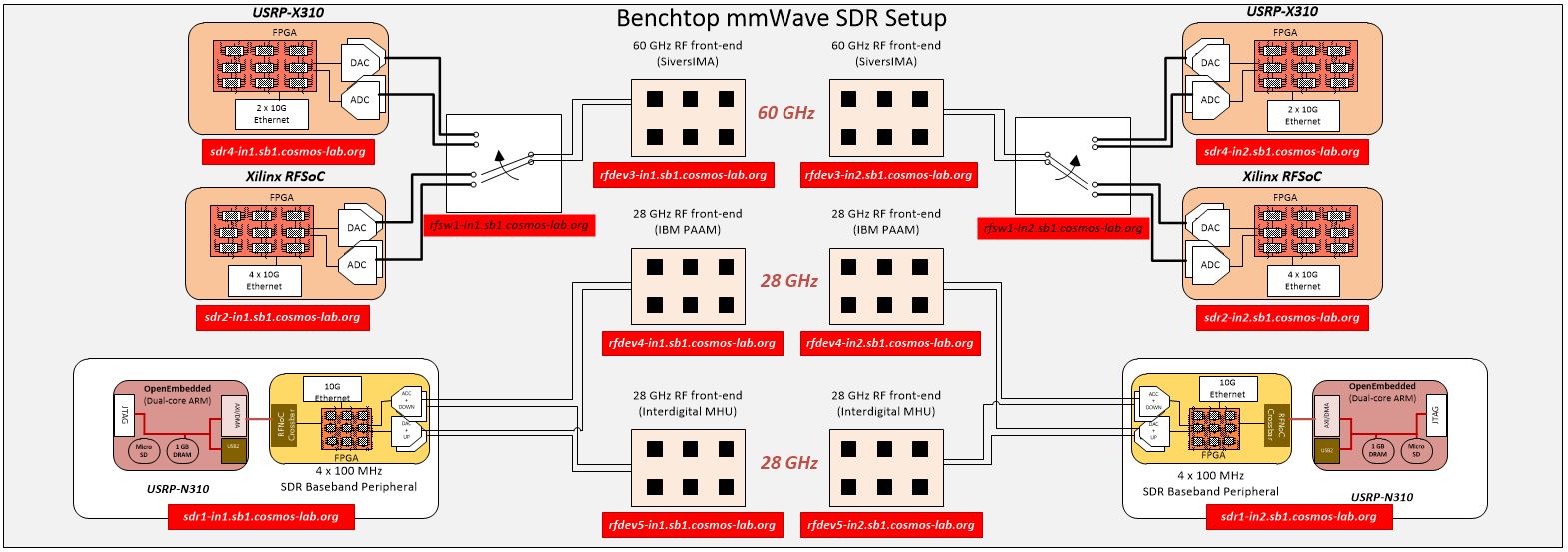
Current mmWave setup in COSMOS SB1 looks as shown in the figure below.

|
In the benchtop 60GHz setup of SandBox1, either USRP X310 or RFSoC ZCU111 can be used for baseband processing. RF Switch boxes as shown in the figure are used to select between X310 and RFSoC. RF path configuration details are at https://wiki.cosmos-lab.org/wiki/Architecture/Domains/cosmos_sb1#RFPathConfigurationsformmWaveDevelopmentPlatforms, and RF switch commands are explained at wiki:/Resources/Services/RFSwitch. To select X310s as baseband processing units, all the switches in the RF switch boxes are configured to port 1.
This experiment uses USRP X310s for baseband processing.
Sivers control software on srv1-in1, srv1-in2 talks to the mmWave front-ends over USB links. Host GNURadio applications on srv1-in1, srv1-in2, send/receive data samples to/from the X310s over 10G Ethernet links.
Prerequisites
In order to access the test bed, create a reservation and have it approved by the reservation service. Access to the resources is granted after the reservation is confirmed. Please follow the process shown on the COSMOS getting started page to get started.
Resources required
2 servers srv1-in1, srv1-in2, 2 USRP X310s sdr4-in1, sdr4-in2 and both the Sivers mmWave platforms rfdev3-in1, rfdev3-in2 on COSMOS SB1.
Tutorial Setup
Follow the steps below to gain access to the sandbox 1 console and set up nodes with appropriate images.
- If you don't have one already, sign up for a COSMOS account
- Create a resource reservation on sandbox 1
- Login into sandbox 1 console (console.sb1.cosmos-lab.org) with two SSH sessions.
- Make sure all the resources in the domain are turned off:
omf tell -a offh -t system:topo:allres
- The image sivers_sb1_cosmos.ndz is [baseline_gr.ndz] with Sivers control software installed.
Load sivers_sb1_cosmos.ndz on srv1-in1,srv1-in2.
omf load -i sivers_sb1_cosmos.ndz -t srv1-in1,srv1-in2
- Turn all the required resources on and check the status
omf tell -a on -t srv1-in1,srv1-in2,sdr4-in1,sdr4-in2,rfdev3-in1,rfdev3-in2
omf stat -t system:topo:allres
- ssh to the nodes, use option -Y for using GUI.
Experiment Execution
Find and prepare USRPs
- The IP addresses for Ethernet Ports(Port 0, 10G with XG image) on the X310s sdr4-in1 and sdr4-in2 were hard-coded to 10.38.14.1 and 10.38.14.2 respectively. To access them from srv1-in1 or srv1-in2, configure the data1 network interfaces on srv1-in1 and srv1-in2 to 10.38.1.3 and 10.38.1.4 respectively.
root@srv1-in1:~# ifconfig data1 10.38.1.3 netmask 255.255.0.0 mtu 9000 up
root@srv1-in2:~# ifconfig data1 10.38.1.4 netmask 255.255.0.0 mtu 9000 up
- Run uhd_find_devices to check if the X310s can be reached
root@srv1-in1:~# uhd_find_devices
[INFO] [UHD] linux; GNU C++ version 7.5.0; Boost_106501; UHD_3.15.0.0-release
--------------------------------------------------
-- UHD Device 0
--------------------------------------------------
Device Address:
    serial: 31B6FFA
    addr: 10.38.14.2
    fpga: XG
    name: sdr4-in2
    product: X310
    type: x300


--------------------------------------------------
-- UHD Device 1
--------------------------------------------------
Device Address:
    serial: 31B8F3F
    addr: 10.38.14.1
    fpga: XG
    name: sdr4-in1
    product: X310
    type: x300
- Set the buffer sizes
sysctl -w net.core.wmem_max=62500000
sysctl -w net.core.rmem_max=62500000
Prepare Sivers 60GHz front-ends
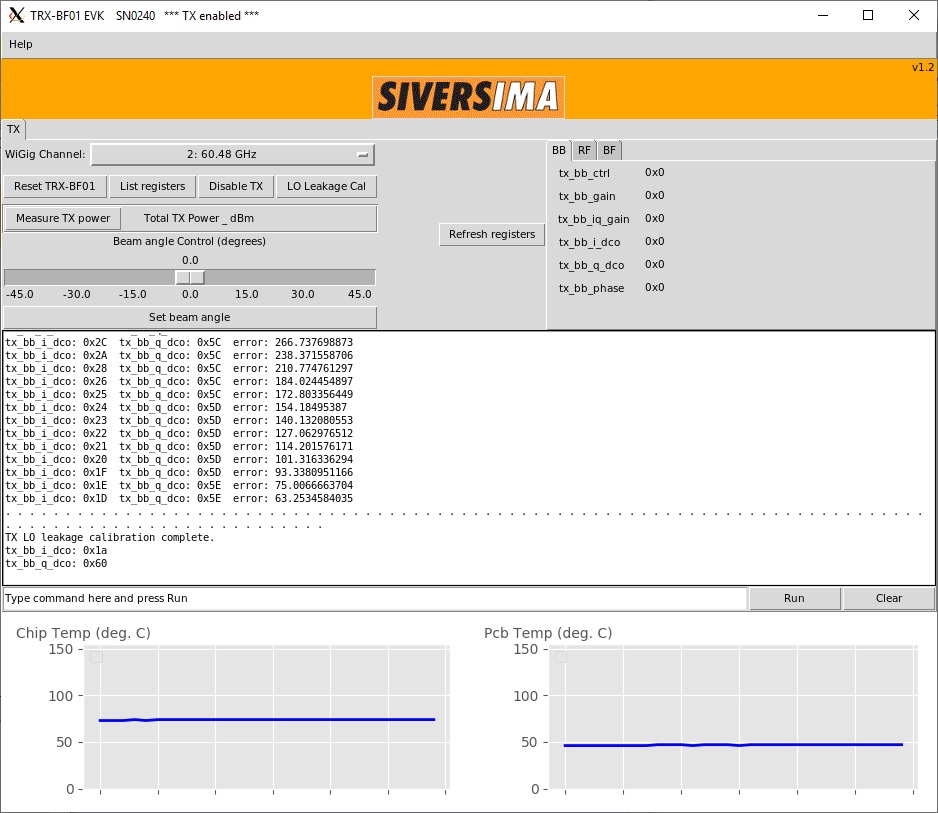
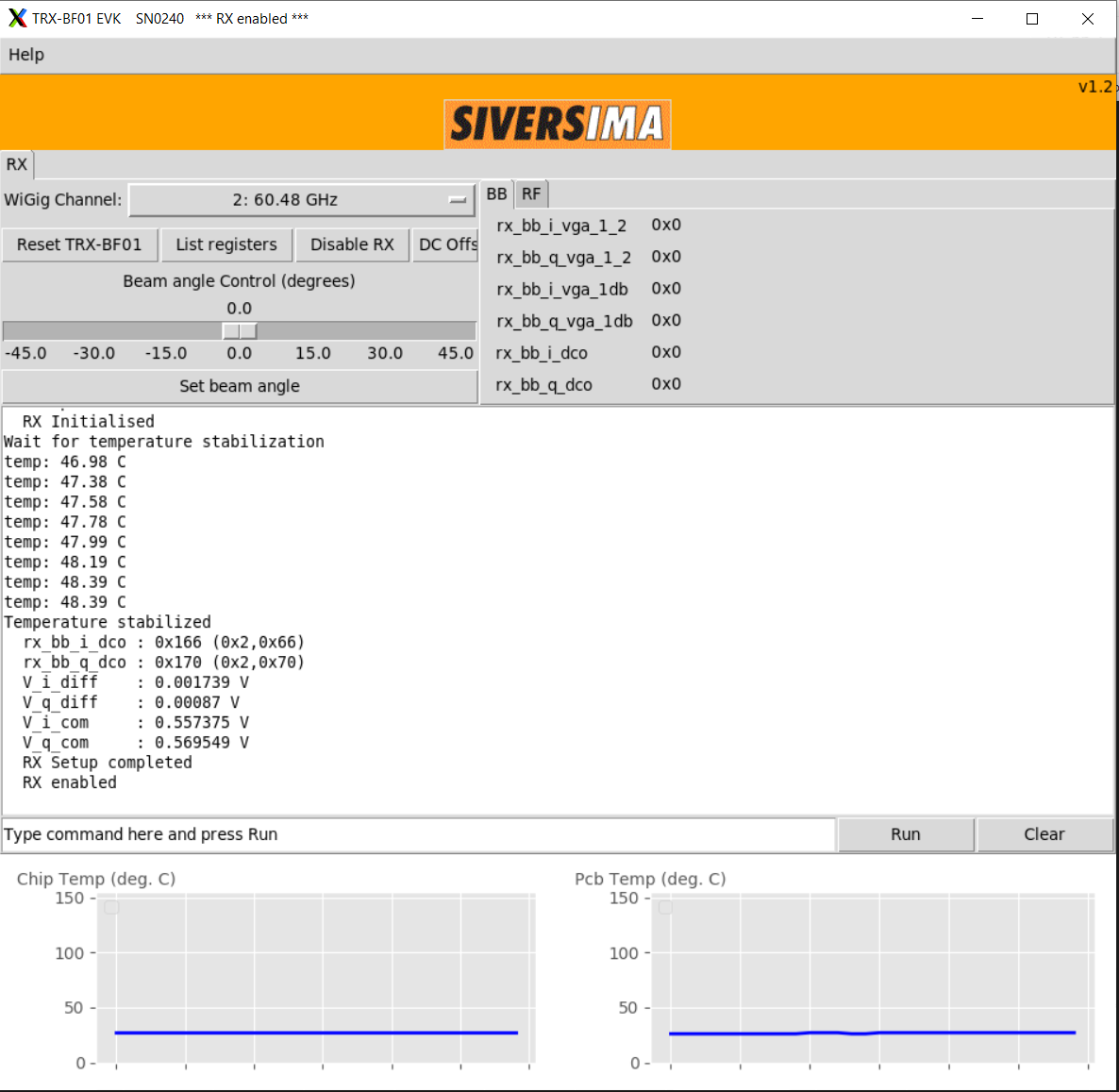
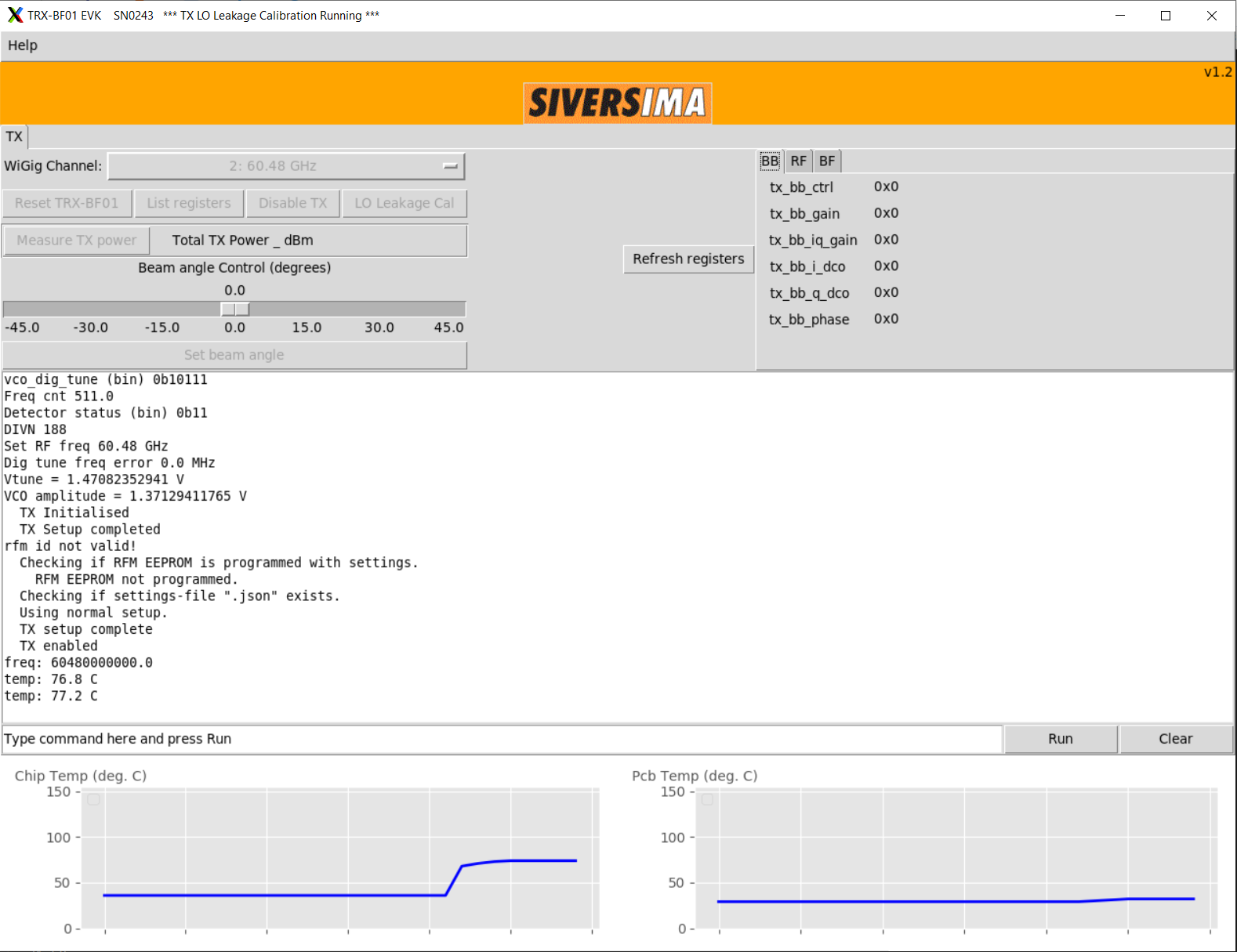
- To demonstrate the experiment here, we use Sivers front-end SN0240 as transmitter and SN0243 as receiver
| SN0240 as transmitter | SN0243 as receiver |
| root@srv1-in1:~/ederenv# ./start_mb1.sh -gui SN0240 | root@srv1-in2:~/ederenv# ./start_mb1.sh -gui SN0243 |
| Click "TX enable" and "LO leakage Cal" | Click "RX enable" |
 | 
|
- Make sure the RF switch boxes are configured to use X310s (all switches set to port 1)
root@console:~# curl am1.cosmos-lab.org:5054/rf_switch/status?name=rfsw1.sb1.cosmos-lab.org,rfsw2.sb1.cosmos-lab.org

<response status="OK">
  <rf_switch name="rfsw1.sb1.cosmos-lab.org" num_of_switches="4">
    <switch number="1" port="1"/>
    <switch number="2" port="1"/>
    <switch number="3" port="1"/>
    <switch number="4" port="1"/>
  </rf_switch>
  <rf_switch name="rfsw2.sb1.cosmos-lab.org" num_of_switches="4">
    <switch number="1" port="1"/>
    <switch number="2" port="1"/>
    <switch number="3" port="1"/>
    <switch number="4" port="1"/>
  </rf_switch>
</response>
- If some or all the ports are set to "2", set them to port "1"
curl "am1.cosmos-lab.org:5054/rf_switch/set?name=rfsw1.sb1.cosmos-lab.org,rfsw2.sb1.cosmos-lab.org&switch=1,2,3,4&port=1"
Execution
Run the experiment
- Start transmit application on the TX node(srv1-in1). Run UHD application tx_waveforms to transmit a sine wave.
root@srv1-in1:~# /usr/lib/uhd/examples/tx_waveforms --args="addr=10.38.14.1" --freq 100e6 --rate 10e6 --ant AB --subdev A:AB --wave-freq 1e6 --wave-type SINE
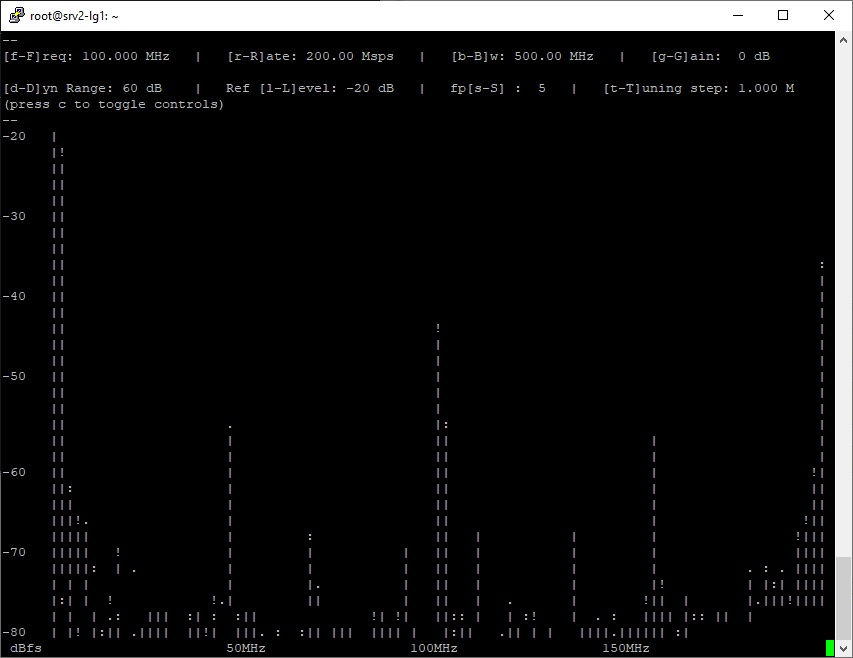
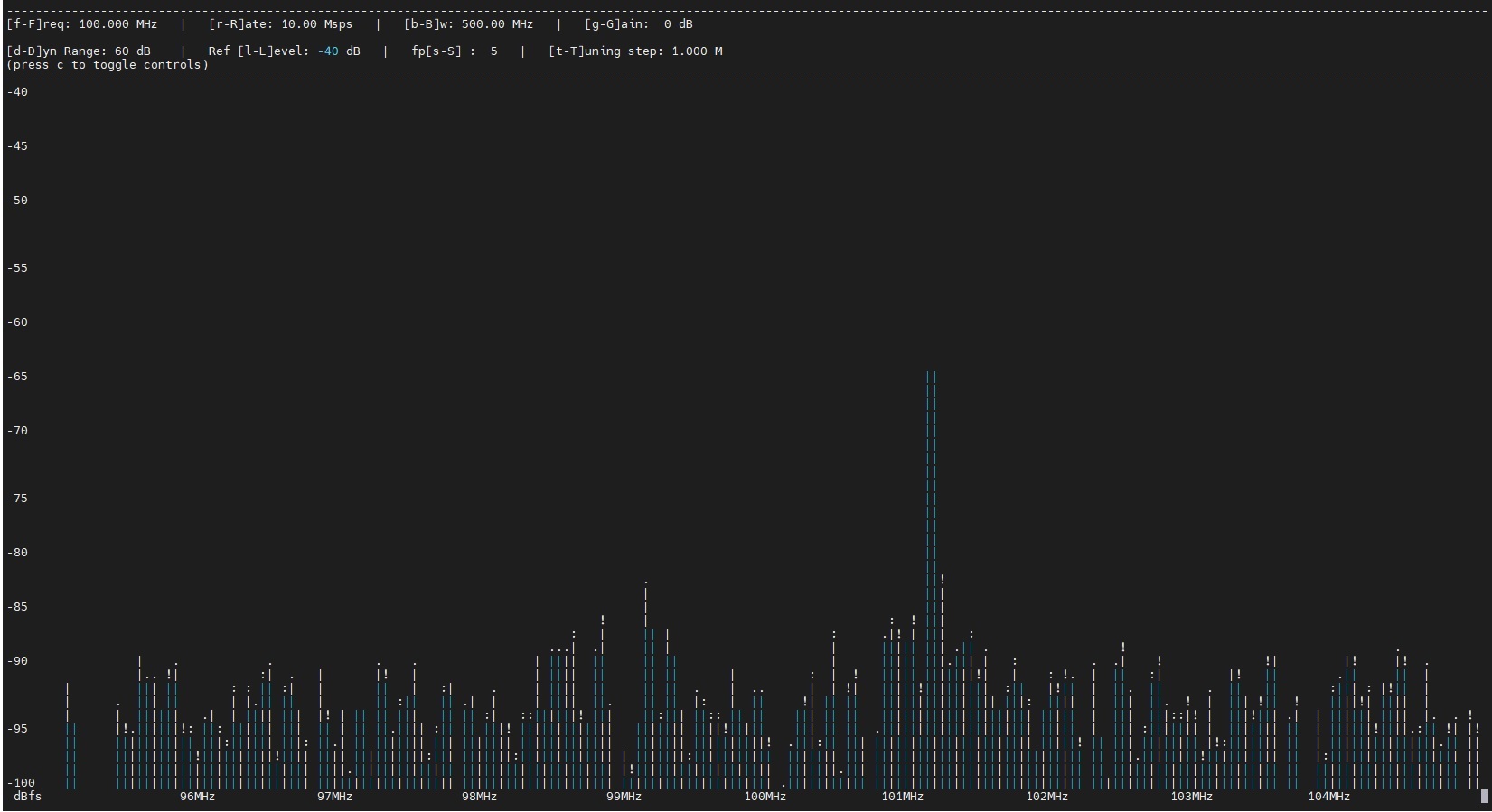
- Start receive application on the RX node(srv1-in2). Run rx_ascii_art_dft to observe the sinewave as shown in the picture below
root@srv1-in2:~# /usr/lib/uhd/examples/rx_ascii_art_dft --args="addr=10.38.14.2" --freq 100e6 --rate 10e6 --ref-lvl -40 --ant AB --subdev B:AB

|
Attachments (11)
- mmWaveSB1_withSW.jpg (55.7 KB ) - added by 7 years ago.
- mmWave_sinewave_rx.jpg (78.0 KB ) - added by 7 years ago.
- Sivers_RX_GUI.jpg (142.9 KB ) - added by 7 years ago.
- Sivers_TX_GUI.jpg (139.8 KB ) - added by 7 years ago.
- Sivers_TX_SN0240.jpg (162.6 KB ) - added by 6 years ago.
- MISO_tutorial.jpg (256.2 KB ) - added by 6 years ago.
- sb1_benchtop_mmwave.jpg (271.3 KB ) - added by 5 years ago.
- mmWave_sinewave_rx.2.jpg (177.6 KB ) - added by 5 years ago.
- sb1_benchtop_mmwave.JPG (166.4 KB ) - added by 5 years ago.
- sivers_rx_SN0240.PNG (176.6 KB ) - added by 2 years ago.
- sivers_tx_SN0243.PNG (200.8 KB ) - added by 2 years ago.
Download all attachments as: .zip